
How to Disable the Trusted Sites Notification on Windows Server 2012
How to turn off IE Enhanced Security Configuration on Windows Server 2012 so you no longer need to manually add every site to Trusted Sites in the browser.
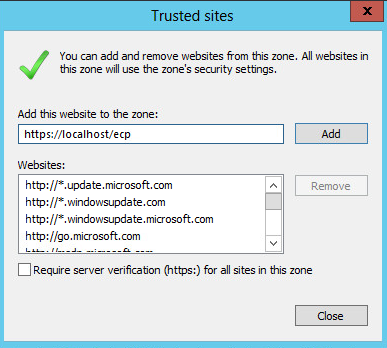
The Trusted Sites prompt (IE Enhanced Security Configuration) is a default Windows Server security feature that asks for confirmation every time you open a new website in Internet Explorer. While it adds security, it can disrupt productivity by requiring you to manually add every site.
How to Disable It
Step 1 — Open Server Manager
Click Start → Server Manager
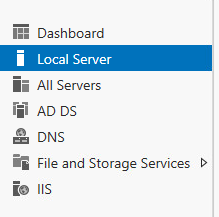
Step 2 — Open Local Server
Click Local Server in the left panel.
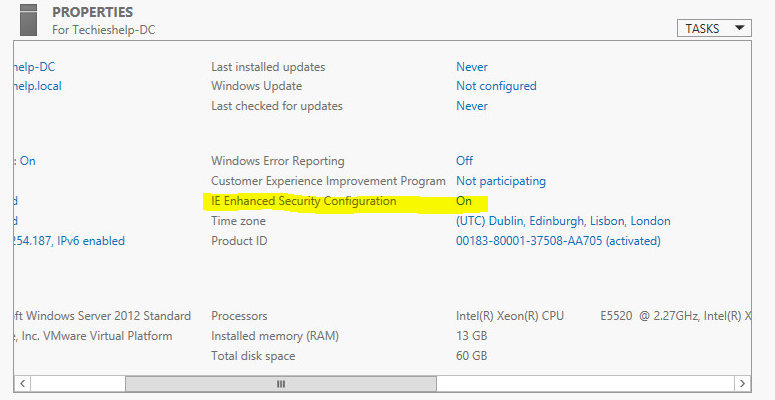
Step 3 — Click IE Enhanced Security Configuration
Scroll down to find IE Enhanced Security Configuration and click it.
Step 4 — Select Off
In the settings window that appears, select Off for Administrators and/or Users, then click OK.
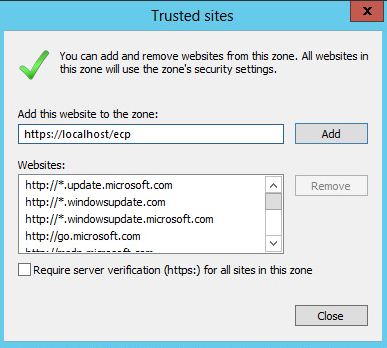
The change takes effect after you restart Internet Explorer or perform a VPS restart.