
How to Fix "An Internal Error" or Stuck "Please Wait" Screen on Windows VPS
Fix the "An Internal Error" message or stuck "Please Wait" screen on Windows VPS Remote Desktop using a quick rdpfix workaround or a permanent Group Policy security layer change.
If you're encountering an "An Internal Error" message or your Windows VPS is stuck on the "Please Wait" screen when connecting via Remote Desktop, follow the steps below.
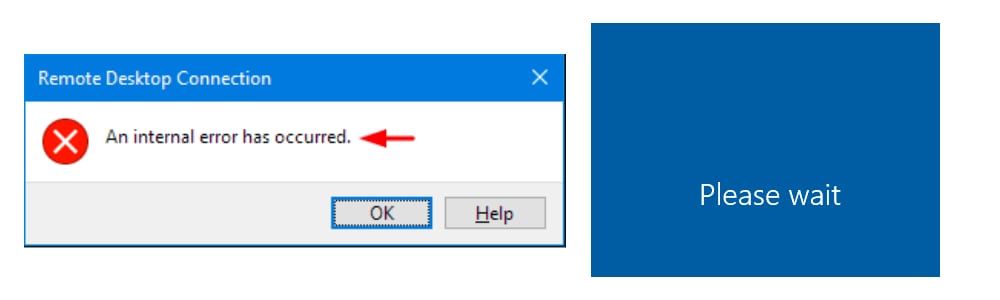
Quick Fix — Use rdpfix
- Download the rdpfix.rdp file from this link: https://s.id/qqQcv
- Open your VPS using this rdpfix file instead of the standard Remote Desktop shortcut.
You should now be able to access the VPS. Note that you'll need to use rdpfix each time you connect until the permanent fix below is applied.
Permanent Fix — Configure Security Layer via Group Policy
To restore normal Remote Desktop access without needing rdpfix, apply this setting inside the VPS:
-
Click Start, type
gpedit.msc, and press Enter. -
In the Group Policy Editor, navigate to:
Computer Configuration → Administrative Templates → Windows Components → Remote Desktop Services → Remote Desktop Session Host → Security
-
Double-click "Require use of specific security layer for remote (RDP) connections".
-
Set it to Enabled, then under Security Layer, select RDP.
-
Click OK and close the Group Policy Editor.
After applying this change, you should be able to connect to your VPS normally via standard Remote Desktop without the rdpfix workaround.