
How to fix missing broker servers in MT4's server list by copying the config file from another MT4 installation that already has the server.
On a Windows VPS (especially Windows 7), you may find that certain broker servers don't appear when searching via Add New Broker in MT4. The solution is to copy the config file from another MT4 installation (e.g. your PC or laptop) that already has that broker server.
Why This Happens
MT4's broker server list is stored locally — if a broker server has never been added on that device, it won't appear in the list.
Solution: Copy Config from an MT4 That Has the Server
On the MT4 That Has the Server (e.g. Your PC/Laptop)
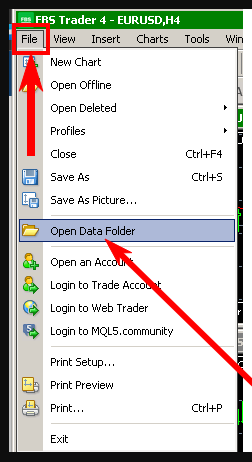
Step 1: Open MT4 → click File → Open Data Folder
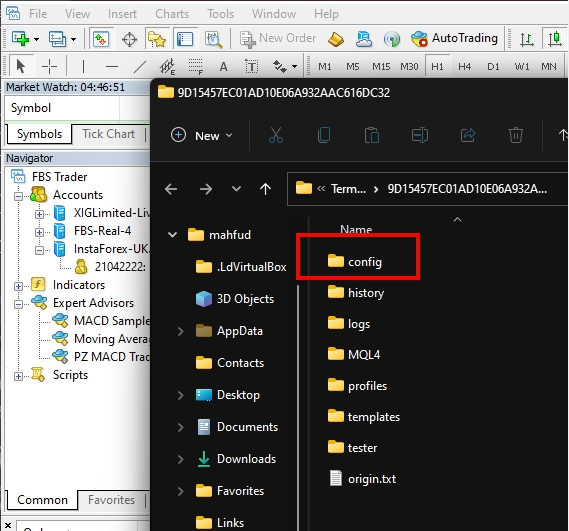
Step 2: Open the Config folder
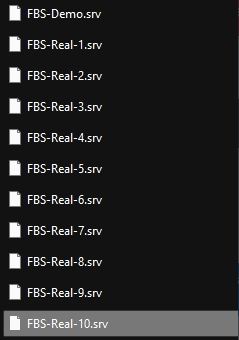
Step 3: Find and copy the server config file you need (usually named after the server, e.g. FBS-Real-10.srv)
On the MT4 Missing the Server (VPS)
Step 4: Open MT4 on the VPS → click File → Open Data Folder → open the Config folder
Step 5: Paste the copied config file into the Config folder on the VPS
The broker server will now appear in your MT4 server list on the VPS.
Transferring files from PC to VPS: Simply copy on your PC and paste inside the VPS via Remote Desktop — it works just like a regular clipboard.