
A CredSSP error when connecting via RDP typically appears after the Windows April update. Fix it by setting Encryption Oracle Remediation to Vulnerable in Group Policy.
After installing the Windows April update, some users encounter a CredSSP authentication error when trying to connect via Remote Desktop (RDP). Here's how to fix it.
Cause
The Windows April update tightened CredSSP authentication policies, which can block RDP connections to servers that haven't been updated yet.
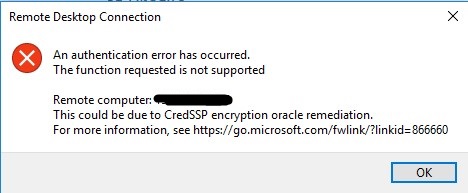
Solution: Modify Group Policy
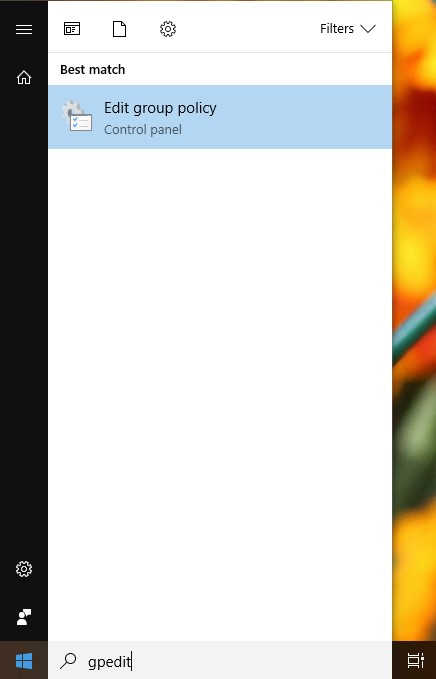
Step 1: Open Group Policy Editor
Click Start, type gpedit.msc, and press Enter.
Step 2: Navigate to Credentials Delegation
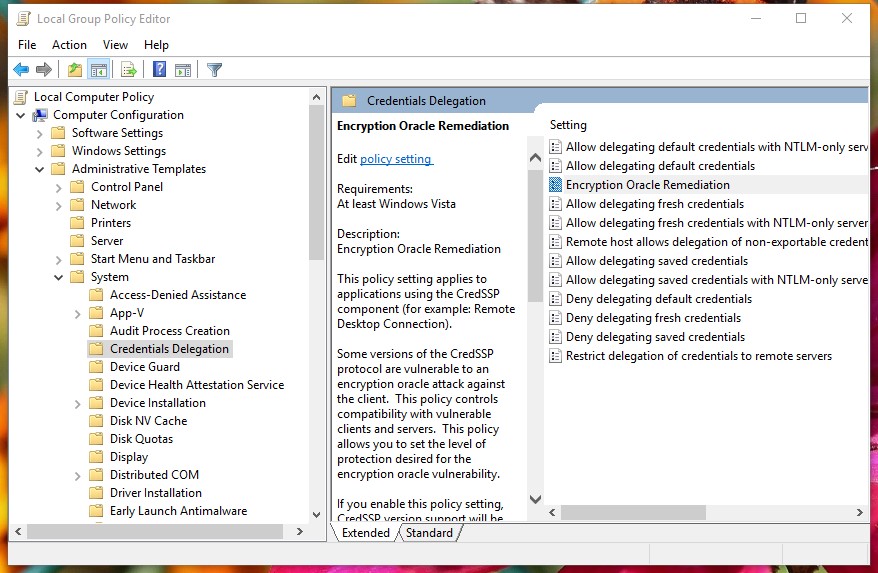
Go to:
Administrative Templates → System → Credentials Delegation
Then double-click Encryption Oracle Remediation.
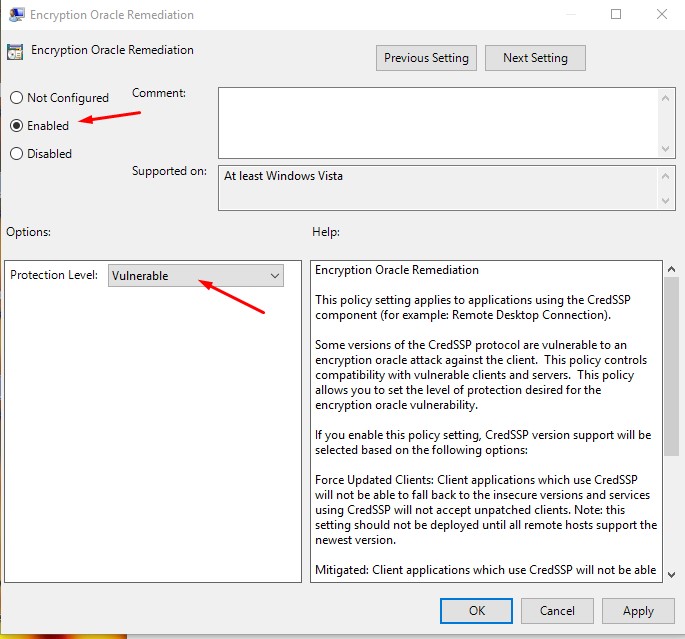
Step 3: Set Protection Level
Select Enabled, then set Protection Level to Vulnerable. Click OK.
After applying this setting, try reconnecting to Remote Desktop. If the issue persists, contact Digitalku support for further assistance.