
Step-by-step guide to changing your Windows VPS password via the Start menu. Be sure to remember your new password — forgetting it requires a full VPS reinstallation.
You can change your VPS password to something more memorable. Follow the steps below:
Steps
-
Log in to your VPS using Remote Desktop.
-
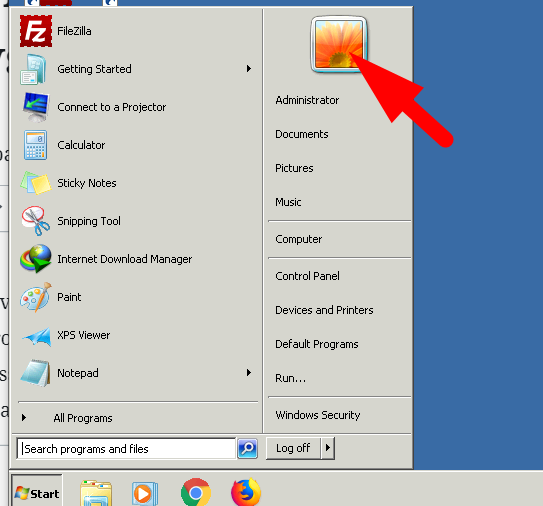
Click Start on your VPS.
-
Click your account profile picture on the Start button.
-
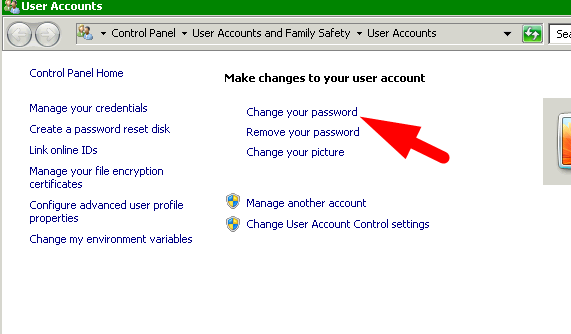
Click Change Password.
-
Enter your new password and click Change Password.
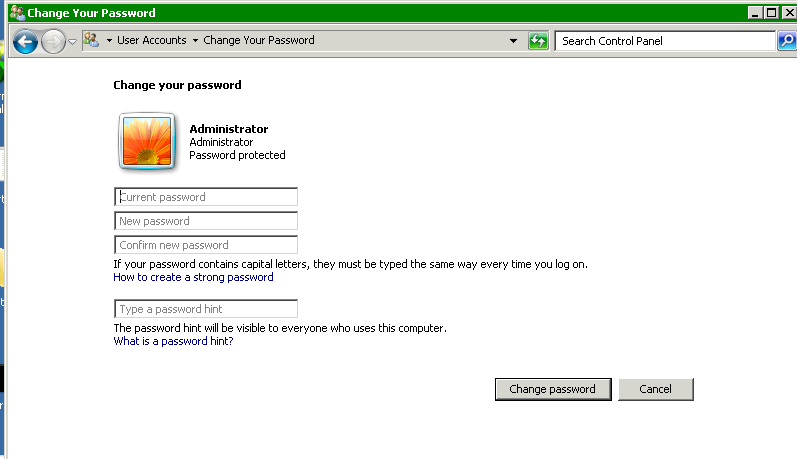
Important: Once you change your password, make sure you remember it. We do not store your new password. If you forget it, the only option is to reinstall the VPS.