
Guide to creating a desktop restart shortcut on Windows when the restart icon is missing or deleted, using the shutdown command.
If the Restart icon on your desktop has been deleted or is unavailable, you can easily recreate it yourself.
Steps
Step 1 — Right-Click on the Desktop
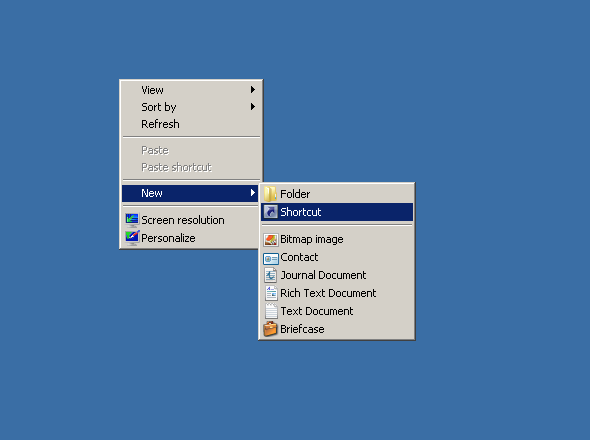
Right-click on an empty area of the desktop → select New → Shortcut
Step 2 — Enter the Restart Command
In the location field, type the following command:
shutdown -r -t 30
-r= Restart-t 30= 30-second countdown before restarting (change to0for an immediate restart)
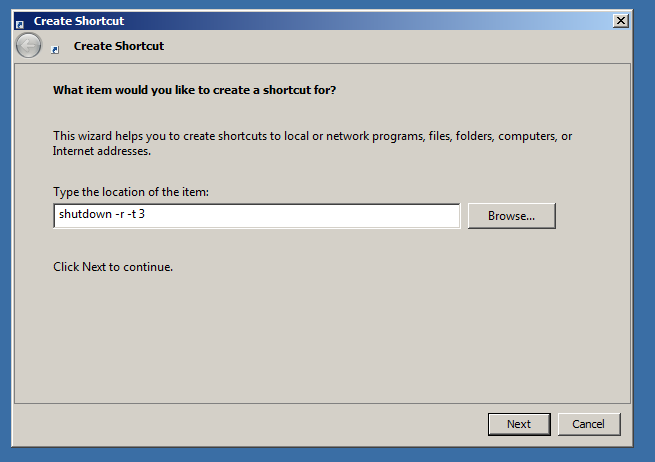
Click Next.
Step 3 — Name the Shortcut
Give the shortcut a name, such as Restart VPS, then click Finish.
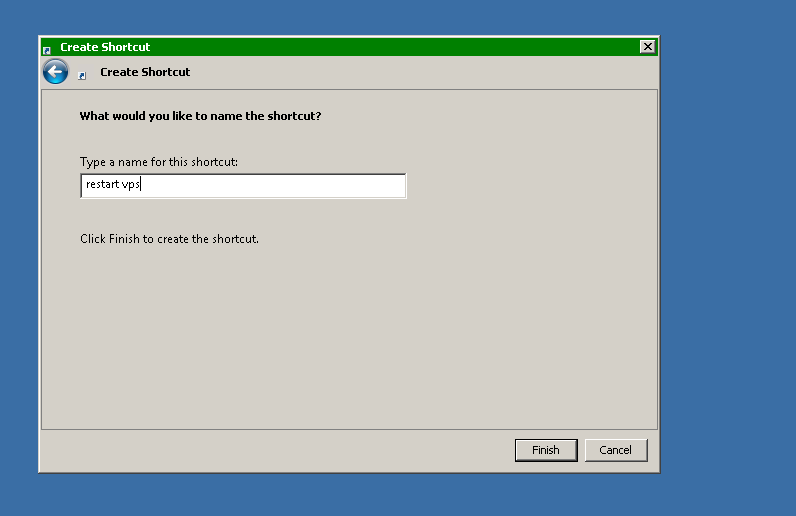
The Restart shortcut will now appear on your desktop and is ready to use.