
Windows Server 2012 disables audio by default. This guide shows how to enable the Windows Audio service to get sound working.
By default, Windows Server 2012 disables the audio service to maximize resource efficiency. However, it can be enabled manually when needed.
Steps
Step 1 — Open Server Manager
Click Start → Server Manager
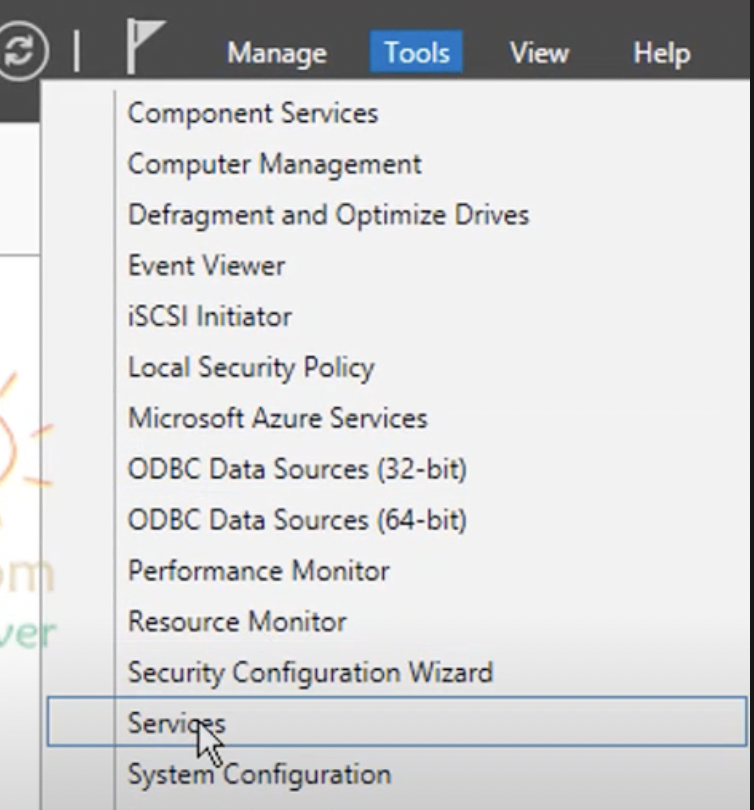
Step 2 — Open Services
Click Tools → Services
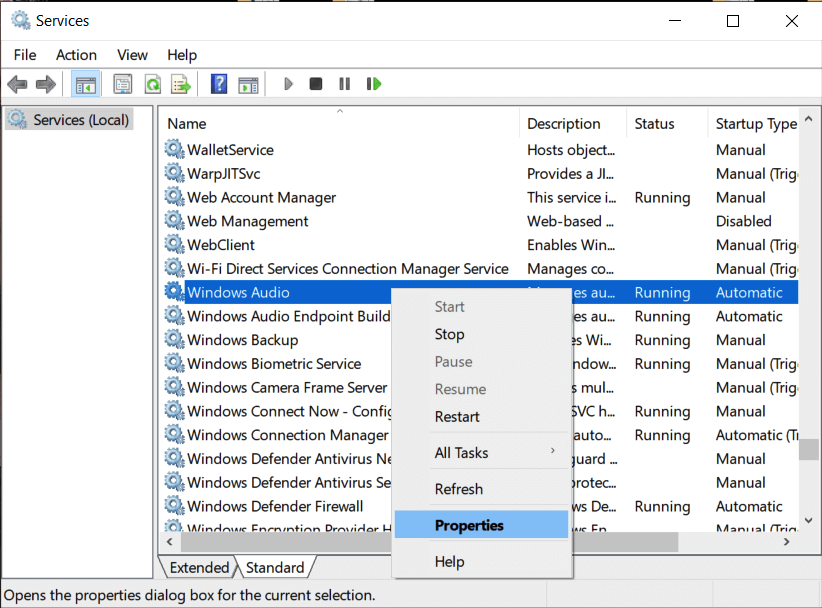
Step 3 — Open Windows Audio Properties
Find Windows Audio in the list and double-click it to open Properties.
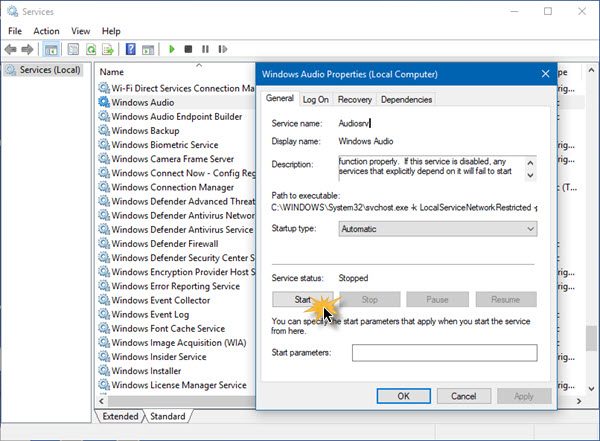
Step 4 — Enable the Audio Service
- Change Startup type to Automatic
- Click the Start button to start the service immediately
- Click OK
The audio service is now active. Speaker and sound output are ready to use on your Windows Server 2012.