
How to Expand Disk Space After Upgrading a Windows 7/2008 VPS
After a VPS upgrade, the Windows partition doesn't expand automatically. This guide shows how to extend Drive C using the Extend Volume feature in Disk Management.
After upgrading your Windows VPS, the additional disk space is allocated at the server level but the Windows partition does not automatically expand. You need to manually extend the partition inside Windows to use the extra storage.
Step 1: Connect via Remote Desktop
Log in to your VPS using Remote Desktop.
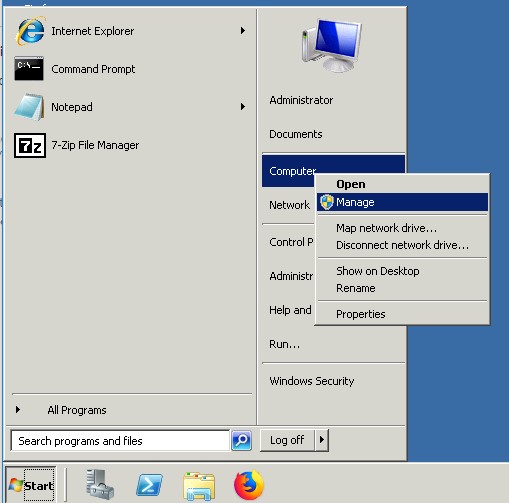
Step 2: Open Computer Management
Right-click Computer in the Start menu and select Manage to open the management console.
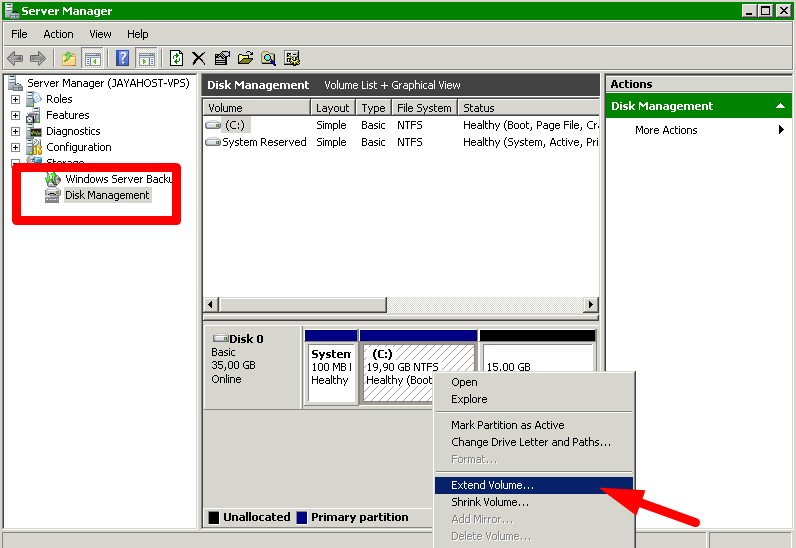
Step 3: Extend Drive C
Navigate to Disk Management, right-click Drive C, and select Extend Volume.
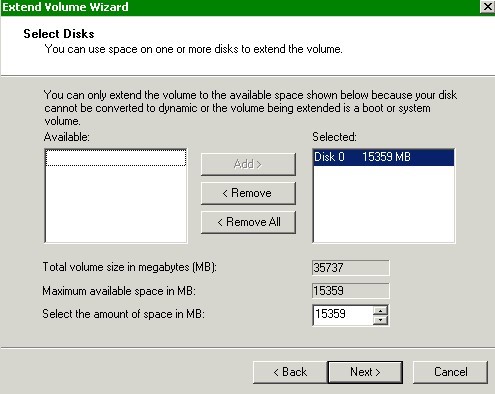
Step 4: Complete the Wizard
Click Next through the wizard dialogs until you reach Finish. Windows automatically selects all available unallocated space to expand the partition.
Done! Your VPS drive now reflects the upgraded disk size. Contact Digitalku support if you run into any issues.