
AnyDesk is a secure and lightweight alternative to Remote Desktop. This guide covers installing and configuring AnyDesk on your Digitalku Windows VPS.
AnyDesk is a remote desktop application with several advantages over the built-in Windows Remote Desktop Protocol (RDP).
AnyDesk vs Remote Desktop
AnyDesk advantages:
- More secure — login uses an AnyDesk ID, keeping your VPS IP hidden
- Auto-start MetaTrader on restart works reliably
- 100% Free — no extra cost for the Free version
AnyDesk disadvantages:
- Digitalku's RDP already includes Brute Force Protection, so RDP is reasonably secure
- The Free version occasionally shows ads
Installation Steps
STEP 1 — Log In to VPS via Remote Desktop
First, log in to your VPS using your regular Remote Desktop connection.
STEP 2 — Download AnyDesk + Tweak Files
Download AnyDesk along with the tweak package from: vfxwelcome.digitalku.com
STEP 3 — Set Your AnyDesk ID and Password
Open AnyDesk — your AnyDesk ID will appear automatically. Note it down, then set a password by clicking the lock icon.
STEP 4 — Install AnyDesk (for Auto-Start)
Run the full installation so AnyDesk starts automatically when the VPS restarts. This makes AnyDesk your primary remote connection, replacing RDP. (A blank white screen may appear during installation — this is normal. Just click X.)
STEP 5 — Disable Discovery
Turn off the Discovery feature so your AnyDesk ID cannot be scanned by other VPS users on the same server.
STEP 6 — Disable Remote Desktop and Remove the RDP Password
Disable Remote Desktop and remove the RDP password. This adds an extra layer of security — preventing attackers from brute-forcing your IP. Removing the RDP password also ensures the MetaTrader auto-start feature works correctly.
After this step, you will no longer be able to log in via Remote Desktop. Use AnyDesk exclusively going forward.
Connecting from Your Local PC
Download AnyDesk from anydesk.com/en/downloads/, enter your VPS's AnyDesk ID, and input the password.
Important Notes
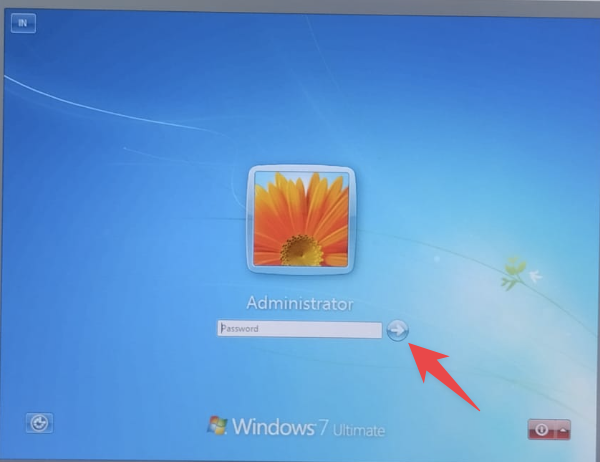
- First login: If a password prompt appears, click the arrow (➡️) without entering anything
- Display resolution: If the font appears too large, adjust the display resolution to your preference