
Guide to locking the display orientation to Landscape mode on your Windows VPS so it always appears in horizontal view via Remote Desktop.
Using a VPS in portrait (vertical) orientation via Remote Desktop can be uncomfortable. Here's how to permanently lock the screen orientation to Landscape mode.
Steps
1. Open Remote Desktop Settings
Open the Remote Desktop application before connecting to your VPS.
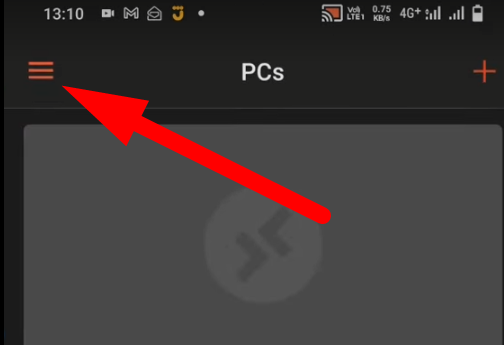
2. Click the Display Tab
Select the Display tab in the connection settings.
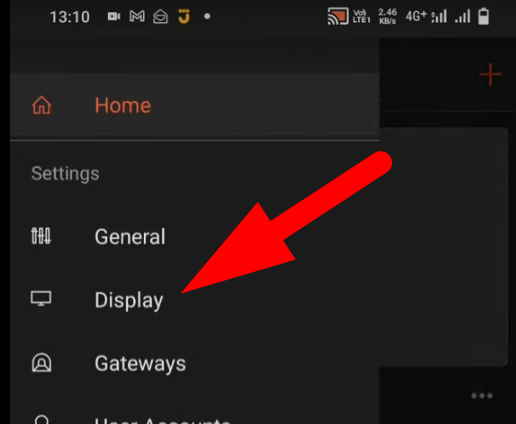
3. Select "Lock to Landscape"
Under Orientation, choose Lock to Landscape.

From now on, the display orientation will be locked to Landscape every time you connect to your VPS.