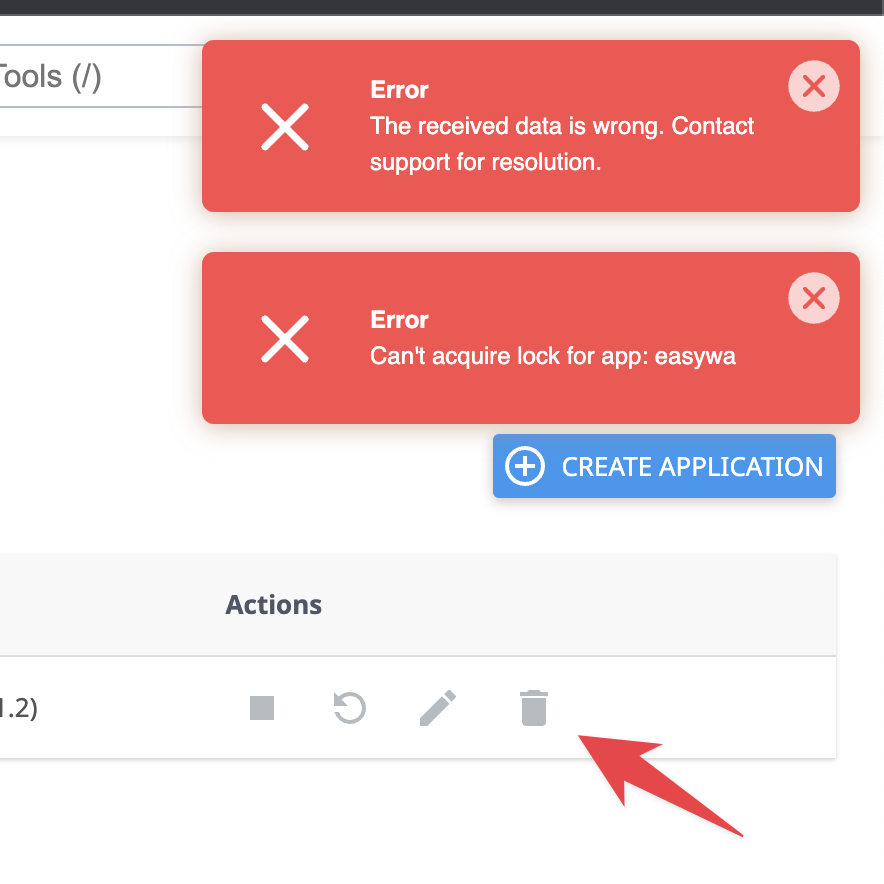
If the delete button in cPanel's Node.js Manager doesn't work due to a hung process, use the cPanel Terminal to force-kill the process and retry the deletion.
Normally, deleting a Node.js application in cPanel is as simple as clicking the trash can icon in the Node.js Manager. However, the deletion can sometimes fail if the Node.js process is hung and requires a manual force close.
cPanel does not yet include a built-in force close feature for this scenario, so the process must be terminated via the Terminal.
How to Force Close via cPanel Terminal
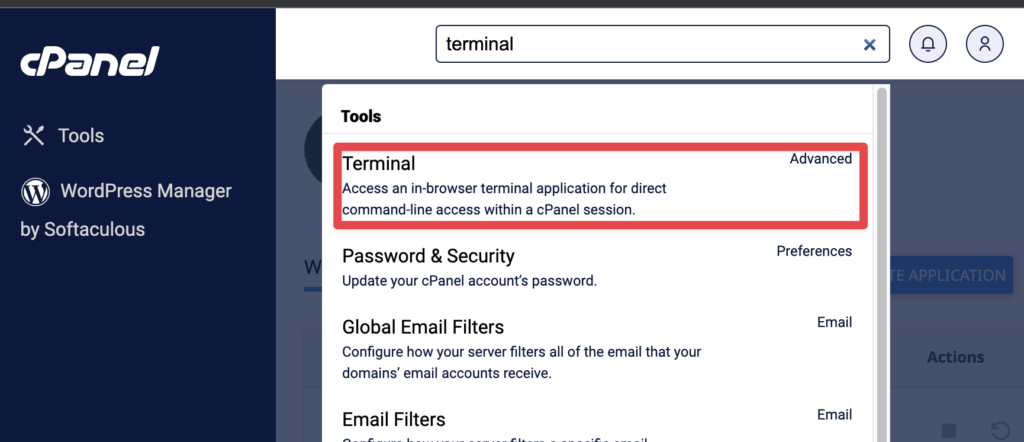
Step 1 — Open Terminal
In cPanel, search for Terminal using the search bar and open it.
Step 2 — Find the Node.js Process PID
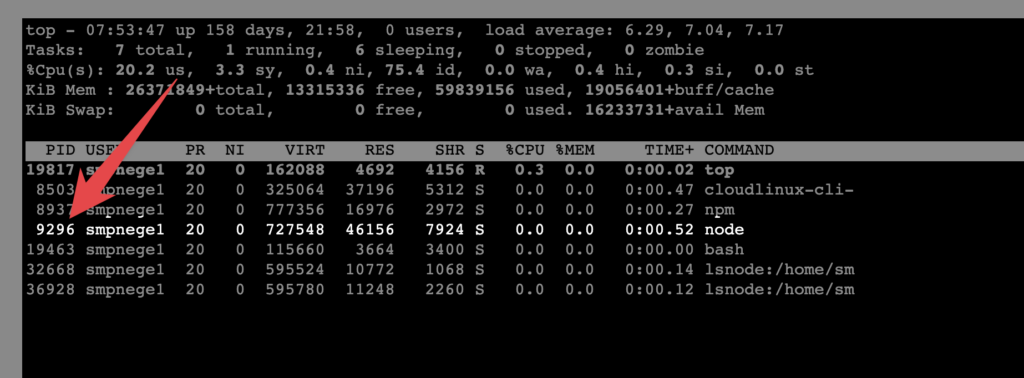
Type the following command and press Enter:
top
Look for a process named node in the list and note its PID number (e.g. 9296).
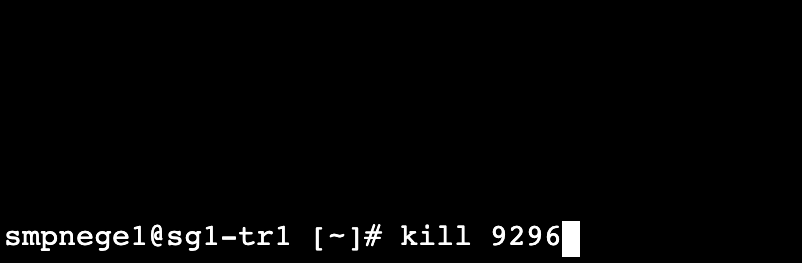
Step 3 — Kill the Process
Press q to exit the top view. Then run the following command, replacing 9296 with the PID you found:
kill 9296
Step 4 — Delete the App from cPanel
Go back to Node.js Manager in cPanel and try deleting the application again. The deletion should now succeed.