
A step-by-step guide on how to upload the required documents for .ID domain activation through the Digitalku client portal.
Unlike international domains that can be activated immediately without documents, Indonesian domains require supporting documents for every activation. See Indonesian Domain Requirements for the full document list.
Steps to Upload .ID Domain Documents
Step 1 — Log in to the Digitalku Client Portal
Step 2 — Click the Domain menu
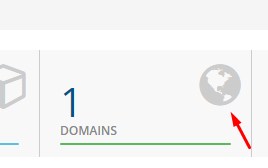
Step 3 — Select the .ID domain you want to manage
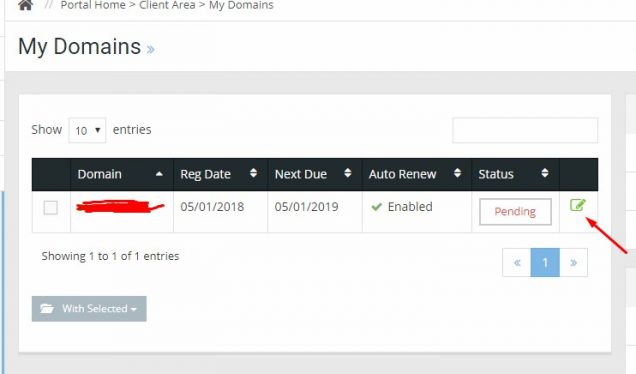
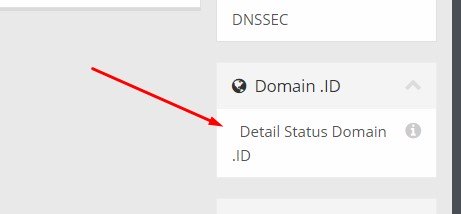
Step 4 — Click Status Domain .ID in the left sidebar
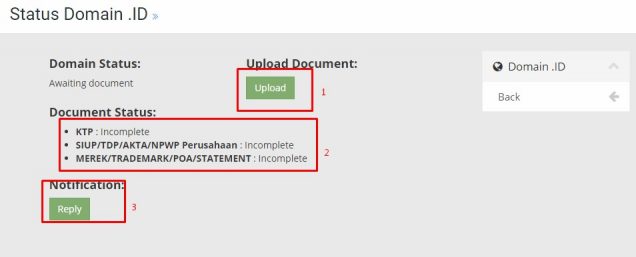
Step 5 — Upload the documents you have prepared
Notes
- Upload documents in the highlighted column (red border)
- Document Status shows the current state: pending review, approved, or rejected
- If your documents are incomplete or rejected, you will receive a notification in the Notification panel
- You can reply to messages from the registrar directly using the Reply button
Once the domain is activated, a confirmation will be sent to your email and you can begin managing your domain.