
How to Fix "The Logon Attempt Failed" on Remote Desktop Even with Correct Password
Fix the "The logon attempt failed" Remote Desktop error on Windows VPS by enabling Remote Desktop in Firewall settings and configuring the Group Policy Credentials Delegation.
If you're getting the "The logon attempt failed" error when trying to connect to your VPS via Remote Desktop — even though your username and password are correct — follow the steps below.
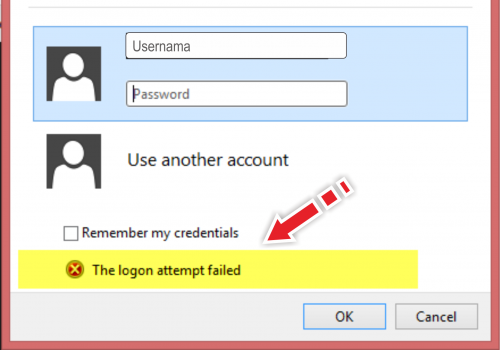
Before you start: Double-check your credentials.
- If you're copy-pasting, make sure no extra spaces are included.
- Paste the password into Notepad first (to strip any HTML formatting) before pasting it into the Remote Desktop login field.
Step 1 — Allow Remote Desktop Through Windows Firewall
-
Press Windows Key + R, type
firewall.cpl, and press Enter. -
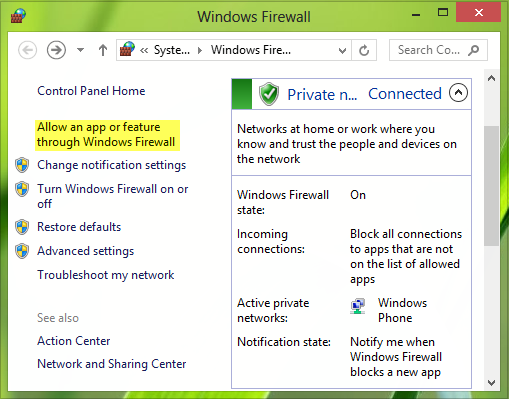
Click Allow an app or feature through Windows Firewall.
-
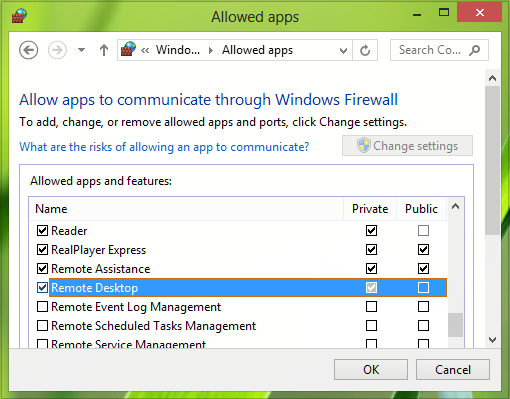
Click Change settings, find Remote Desktop in the list, check the box, and click OK.
-
Restart your computer and try logging in again. If the error persists, proceed to Step 2.
Step 2 — Configure Group Policy Editor
-
Press Windows Key + R, type
gpedit.msc, and press Enter.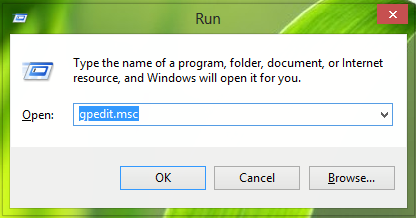
-
Navigate to:
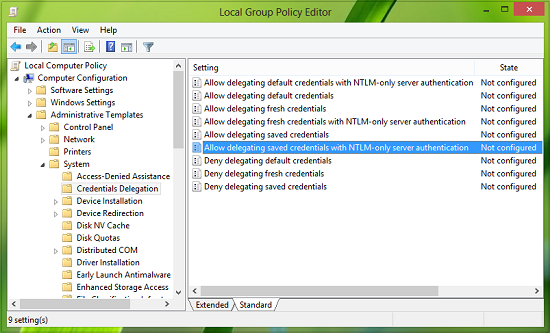
Computer Configuration → Administrative Templates → System → Credentials Delegation
-
In the right panel, find "Allow delegating saved credentials with NTLM-only server authentication" and double-click it.
-
Select Enabled, then click Show in the Options section.
-
In the window that appears, enter:
TERMSRV\*.*(Replace
*.*with your specific computer name if needed, or keep*.*to allow all hosts.)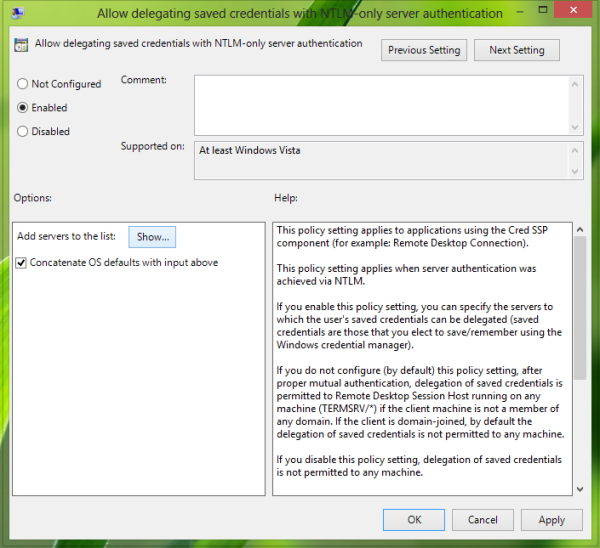
-
Click OK → Apply → OK, then close the Group Policy Editor.

-
Restart your computer (or try connecting without restarting first).
After completing these steps, you should be able to log in to your VPS via Remote Desktop normally.