
How to fix a locked Remote Desktop caused by too many failed login attempts. Wait 10 minutes for the lockout to expire, or permanently disable Account Lockout Policy via secpol.msc.
This issue commonly occurs after too many failed Remote Desktop login attempts. Windows automatically blocks access to protect your VPS from hacking threats.
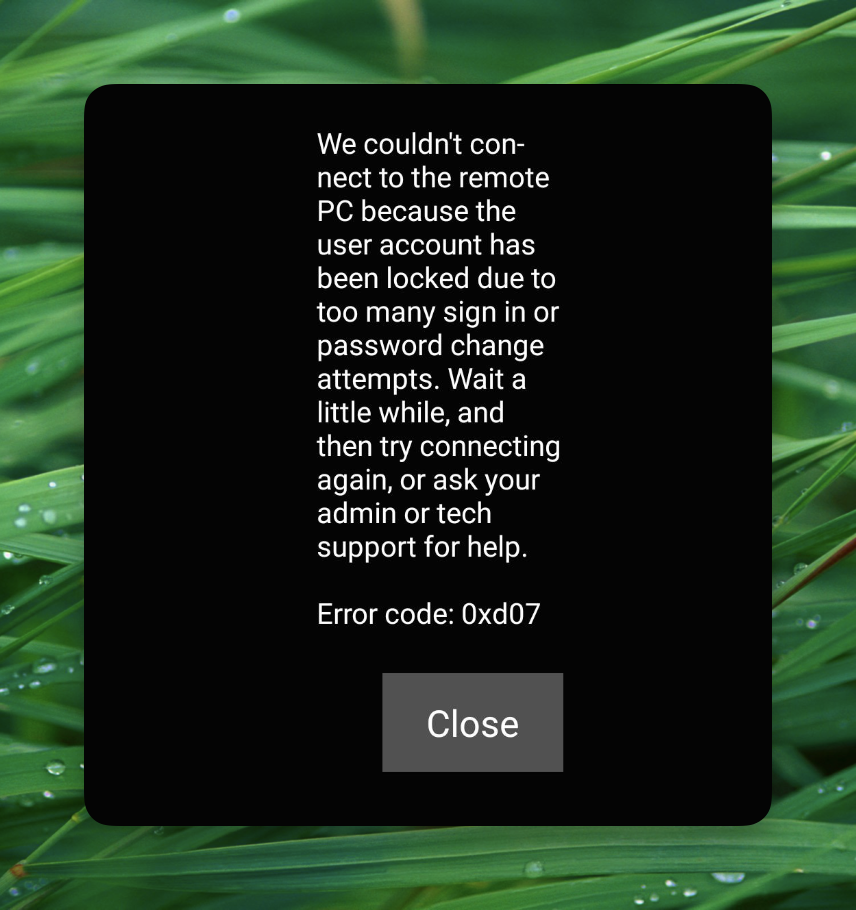
This behavior is controlled by the Account Lockout Policy in secpol.msc (Local Security Policy), which determines how Windows responds after a set number of failed login attempts within a given timeframe.
Quick Fix
The simplest solution is to wait approximately 10 minutes before trying to log in again. The system will automatically unlock after the lockout period expires.
How to Disable Account Lockout Policy
If you want to prevent this from happening in the future:
Step 1: Open Local Security Policy
- Windows 10/11: Right-click Start → Run → type
secpol.msc→ press Enter - Windows 7: Click Start → type
secpol.msc→ press Enter
Step 2: Change the Lockout Threshold
- Navigate to Security Setting → Account Policies → Account Lockout Policy
- Double-click "Account lockout threshold"

- Set the value to
0to disable the lockout feature entirely - Click OK and close the window
Security Recommendations
If you disable Account Lockout Policy, make sure to:
- Use a strong password (mix of uppercase, lowercase, numbers, and symbols)
- Install EvlWatcher as additional protection against brute force attacks — it can be downloaded from the VPS welcome screen or requested from our support team.