
Basic guide to adding an Expert Advisor (EA/Forex Robot) file to MetaTrader on your VPS via the MQL4/Experts folder.
Here is a basic guide to adding an EA (Expert Advisor / Forex Robot) to MetaTrader on your VPS.
Before starting, log in to your VPS and open MetaTrader.
Steps
1. Open the MetaTrader Data Folder
Click File → Open Data Folder
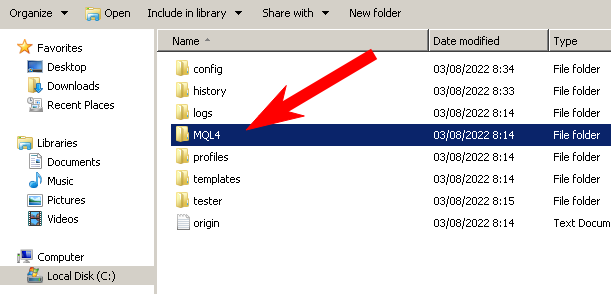
2. Open the MQL4 Folder
Open the MQL4 folder.
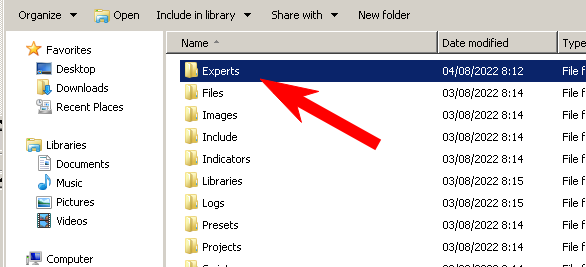
3. Open the Experts Folder
Open the Experts folder.
4. Copy Your EA File
Copy the EA file from your local computer and paste it into the Experts folder on the VPS.
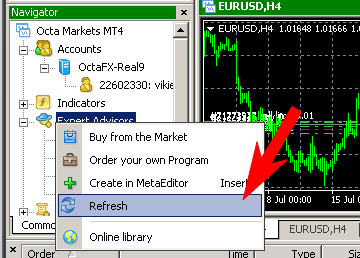
5. Refresh the EA List in MetaTrader
Go back to MetaTrader, right-click on Expert Advisors in the Navigator panel, and click Refresh.
Your EA is now ready to use.
Tips for Android/iPhone users:
If you need to transfer files from your smartphone to the VPS, see these guides:
- iPhone/iPad: How to Transfer Files to VPS on iOS/iPadOS
- Android: How to Transfer Files to VPS on Android