
Step-by-step guide to changing the Administrator account password on a Windows Server 2012 VPS via Server Manager and Computer Management.
Here is a guide to changing your Windows Server 2012 VPS password via Server Manager.
Important: Once changed, do not forget your new password. Digitalku does not store your password. If you forget it, the only option is to reinstall the VPS.
Steps
Step 1 — Log In to the VPS
Log in via Remote Desktop using the Administrator account.
Step 2 — Open Computer Management via Server Manager
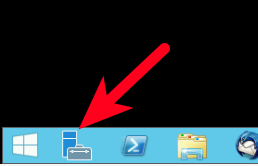
Click Server Manager (bottom-left corner).
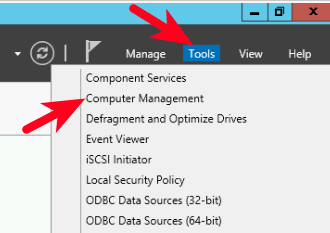
Click Tools → Computer Management.
Step 3 — Access the Administrator User
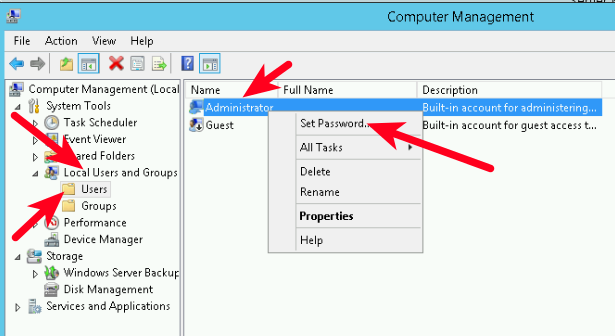
In the left panel, click Local Users and Groups → Users. Right-click Administrator → select Set Password...
Step 4 — Click Proceed
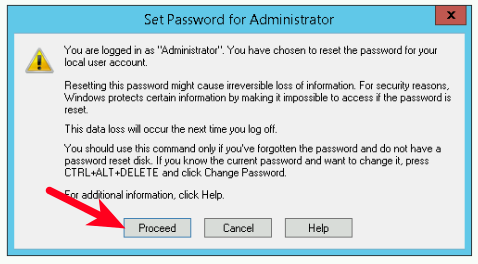
On the Set Password for Administrator confirmation dialog, click Proceed.
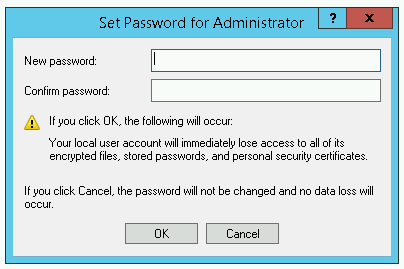
Step 5 — Enter the New Password
Fill in both New Password and Confirm Password with the same new password.
Password requirements:
- Must contain lowercase letters, uppercase letters, and numbers
- Minimum 3 characters
Click OK to confirm.
Your Windows Server 2012 VPS password has been successfully changed.