Guide to using the Forwarders feature in cPanel to automatically redirect incoming emails from your domain to another email address.
The Email Forwarders feature in cPanel lets you automatically redirect incoming emails from your domain address to any other email address.
Steps
Step 1 — Find the Forwarders Feature
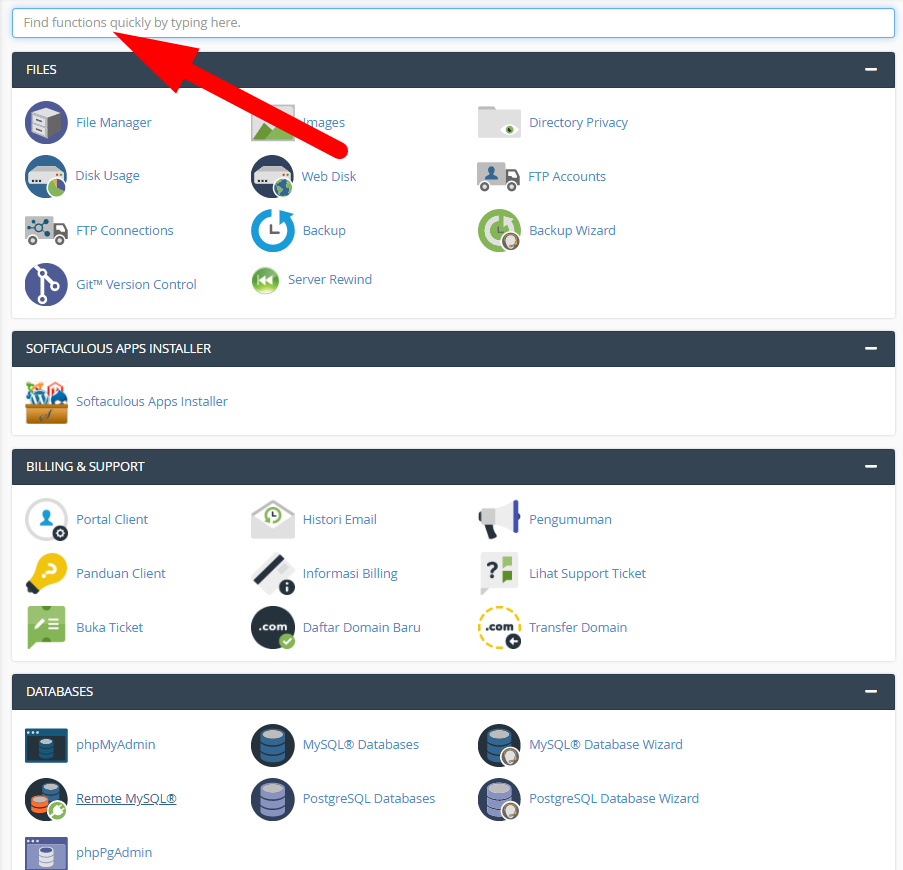
Log in to cPanel and use the search bar at the top to find the feature.
Step 2 — Search for "forward"
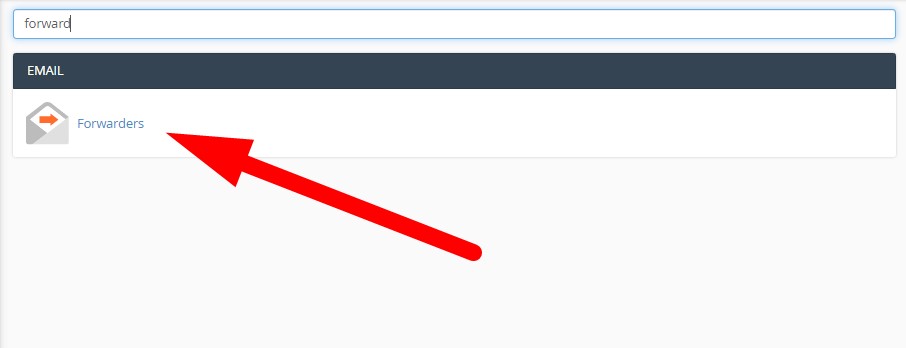
Type "forward" in the search bar, then click the Forwarders icon that appears.
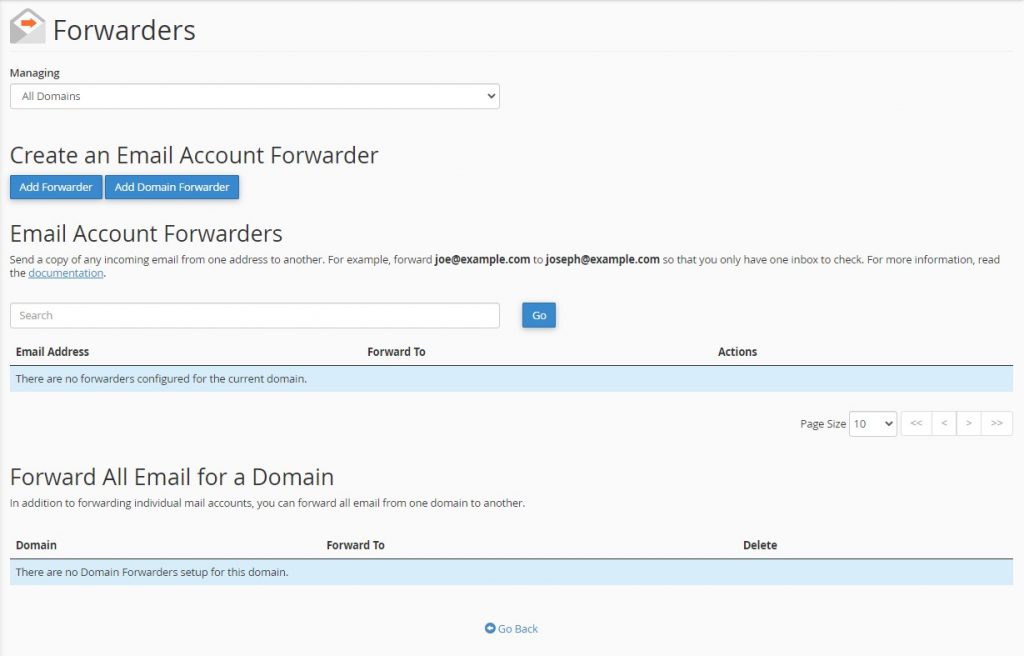
Step 3 — Click Add Forwarder
On the Forwarders page, click Add Forwarder.
Step 4 — Fill In the Forwarder Details
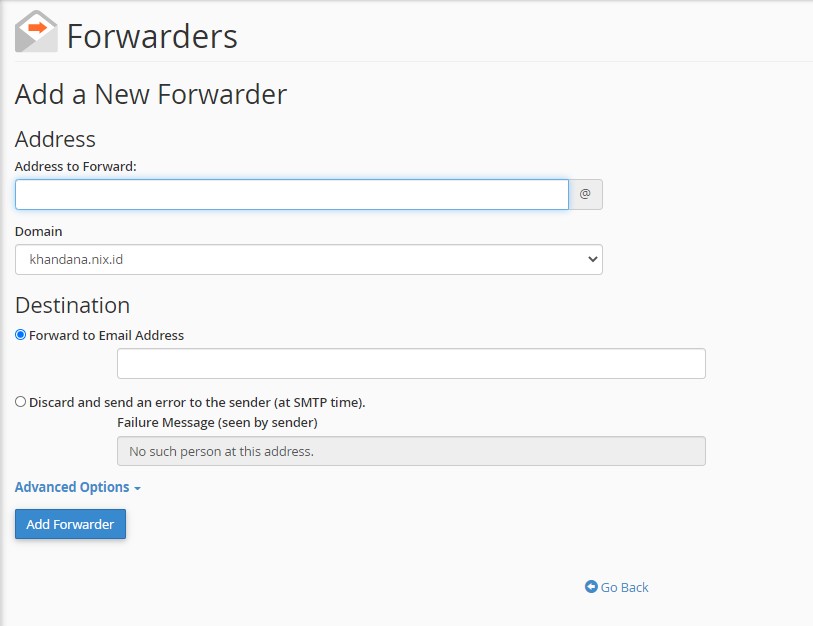
Fill in the Add New Forwarder form:
- Address to Forward — the email address to forward from (it does not need to exist in cPanel beforehand)
- Domain — select the domain of the email to be forwarded
- Destination — select "Forward to Email Address" and enter the destination address
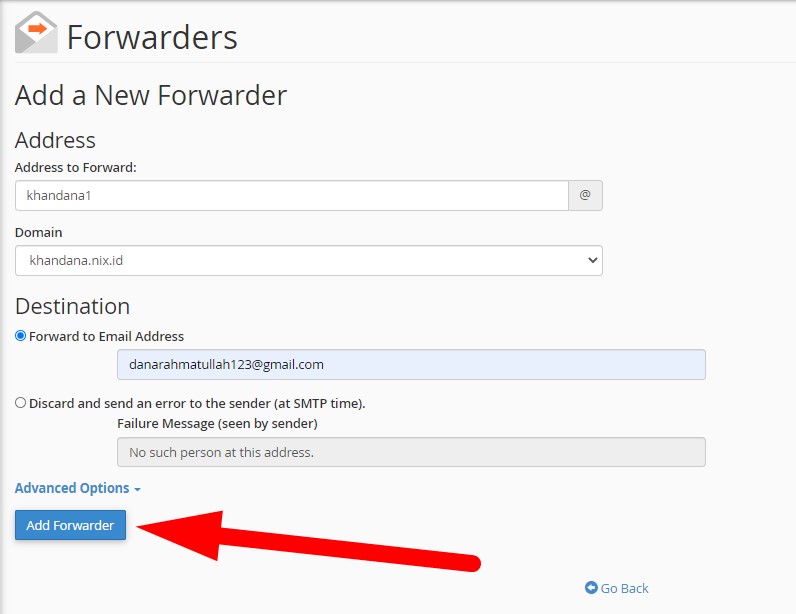
Step 5 — Click Add Forwarder
Once all fields are filled, click Add Forwarder.
Step 6 — Confirmation
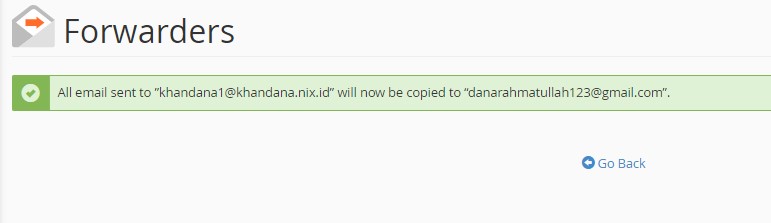
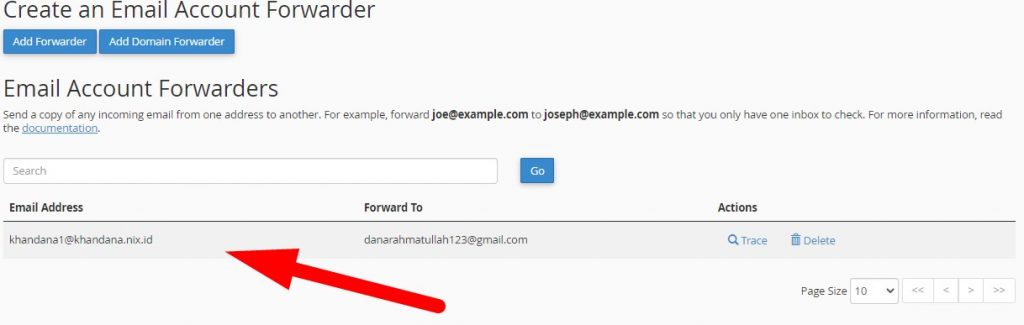
Your forwarder has been created. Click Go Back to view your active email forwarder list.