Guide to installing Laravel on cPanel hosting using the Softaculous Apps Installer — no SSH or manual Composer setup required.
Here is a step-by-step guide to installing Laravel on cPanel hosting using the Softaculous Apps Installer.
Step 1 — Log In to cPanel
Log in to your hosting cPanel. See the how to log in to cPanel guide if needed.
Step 2 — Open Softaculous
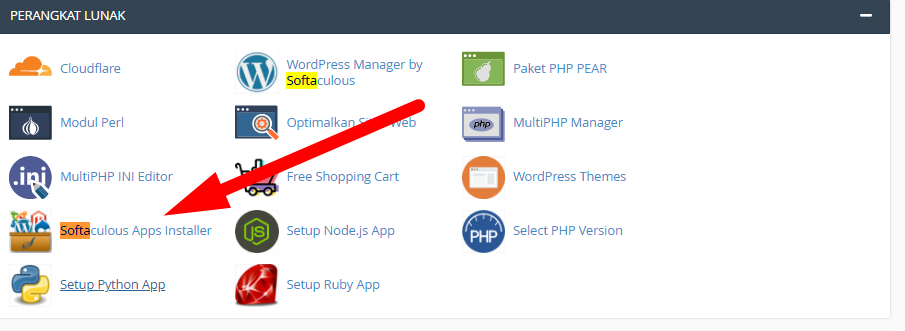
On the cPanel home page, find and click Softaculous Apps Installer. Use the search bar if you have trouble locating it.
Step 3 — Find and Select Laravel
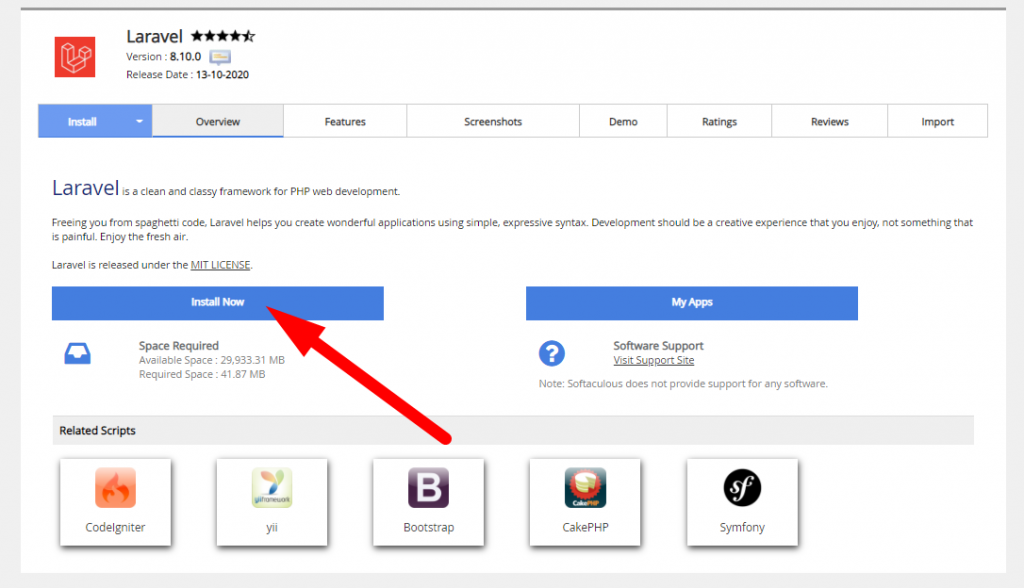
On the Softaculous page, use the search bar to find Laravel. Click the result to open the Laravel page, which shows the current version and feature details. Click Install Now to proceed.
Step 4 — Fill In the Configuration Form
Complete the Software Setup form:
- Quick Install — simplified setup: just choose domain and directory
- Choose Protocol — select
https://orhttp:// - Choose Domain — select the domain where Laravel will be installed
- In Directory — leave empty to install at the root (
https://yourdomain.com/), or enter a folder name for a subdirectory (https://yourdomain.com/folder) - Email installation details to — optional: enter an email to receive a notification when the installation completes
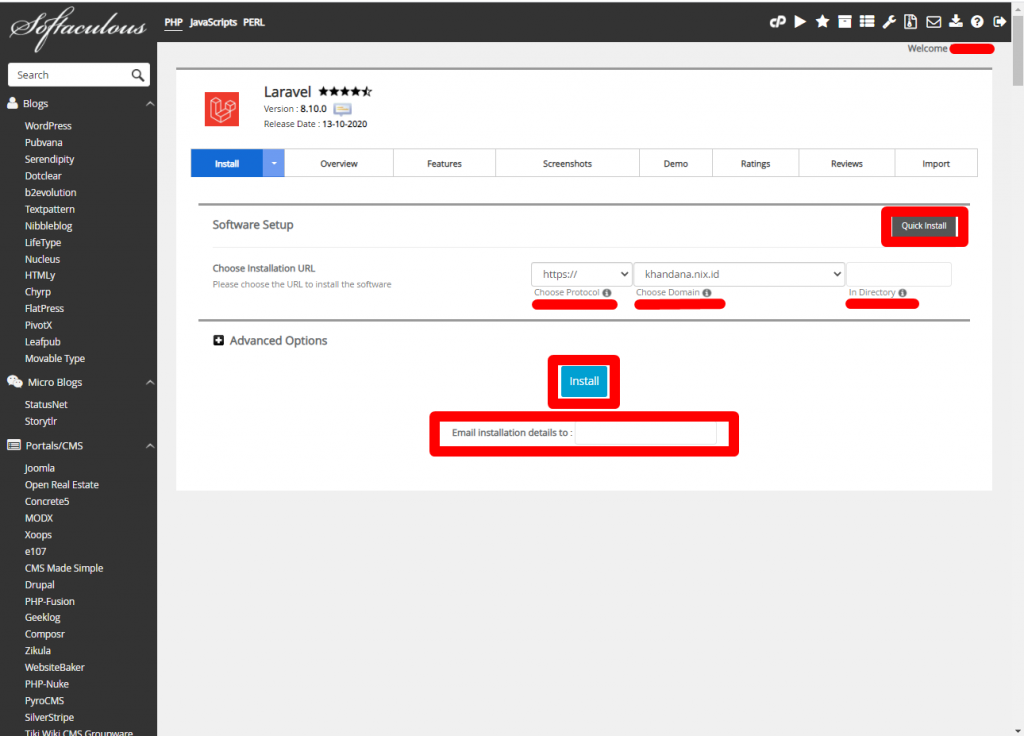
Double-check your entries, then click Install.
Step 5 — Installation Complete
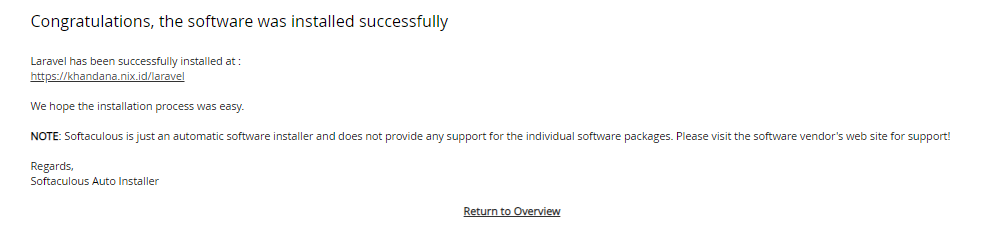
If there are no errors, a success confirmation page will appear. Access your Laravel installation at:
https://yourdomain.com/