
OBS cannot be installed directly on Windows Server 2012 without enabling additional desktop features. This guide covers installing OBS via Windows Server Essentials.
Installing OBS directly on Windows Server 2012 typically results in errors because certain desktop features are not available by default. Two preparation steps are required: enabling Windows Server Essentials Experience and installing the Windows Server Essentials Media Pack.
Step 1 — Enable Windows Server Essentials Experience
-
Open Server Manager
-
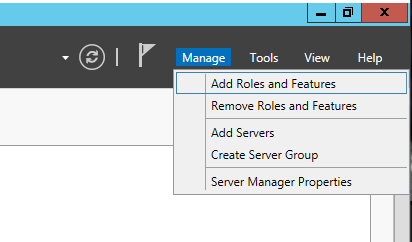
Click Manage → Add Roles and Features
-
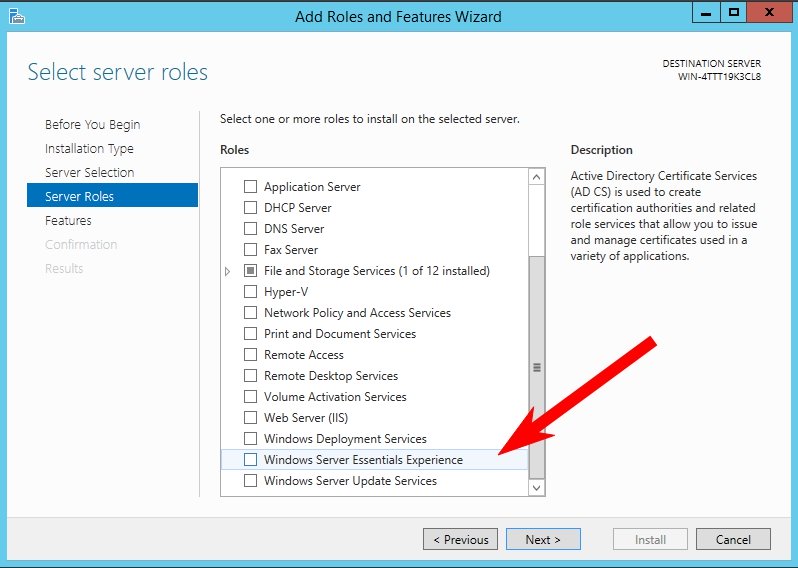
Check Windows Server Essentials Experience
-
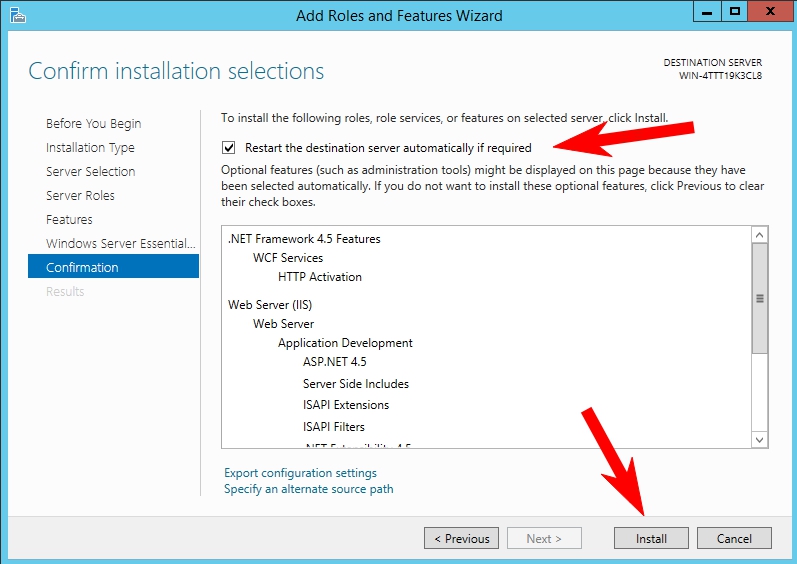
Click Next, then check Restart the destination server automatically if required
-
Click Install
-
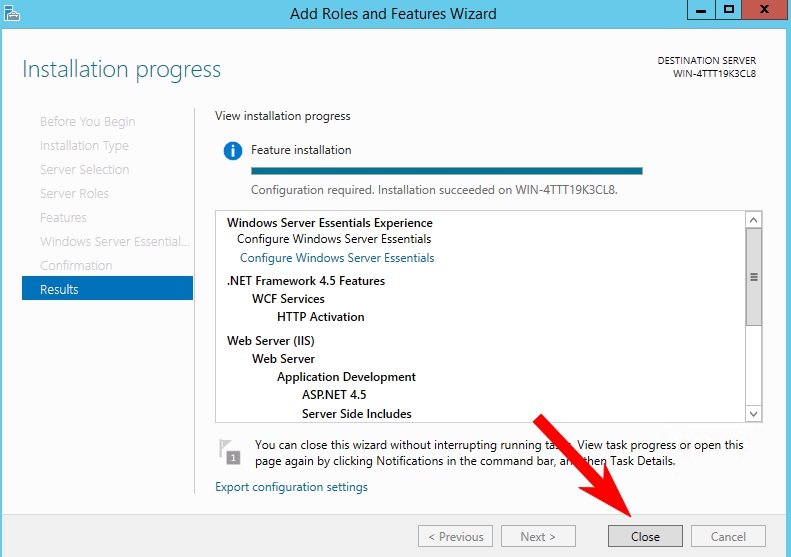
Once complete, click Close
Step 2 — Download and Install Windows Server Essentials Media Pack
Open the following link inside the VPS to download the Media Pack:
https://vfxwelcome.digitalku.com/win2012.html

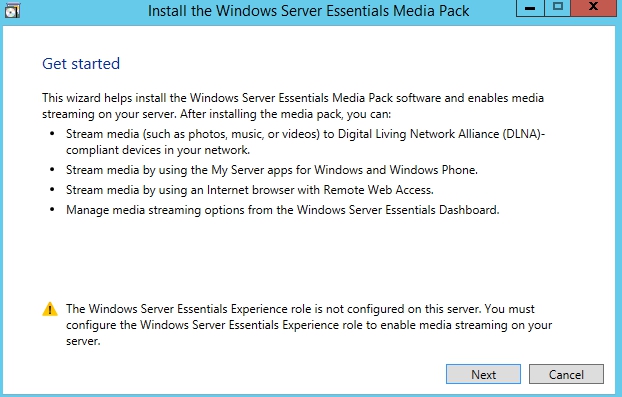
Once downloaded, run the installer and click Next as prompted.
Step 3 — Restart and Install OBS
After the Media Pack is installed, restart the VPS and try installing OBS again. The installation should now succeed.
If you still encounter issues, contact our support team for further assistance.