
Complete guide to optimizing MetaTrader performance on a VPS: disable news, clear objects and history, clean browser cache, and schedule restarts.
Optimizing MetaTrader on your VPS improves trading performance and ensures efficient, stable operation.
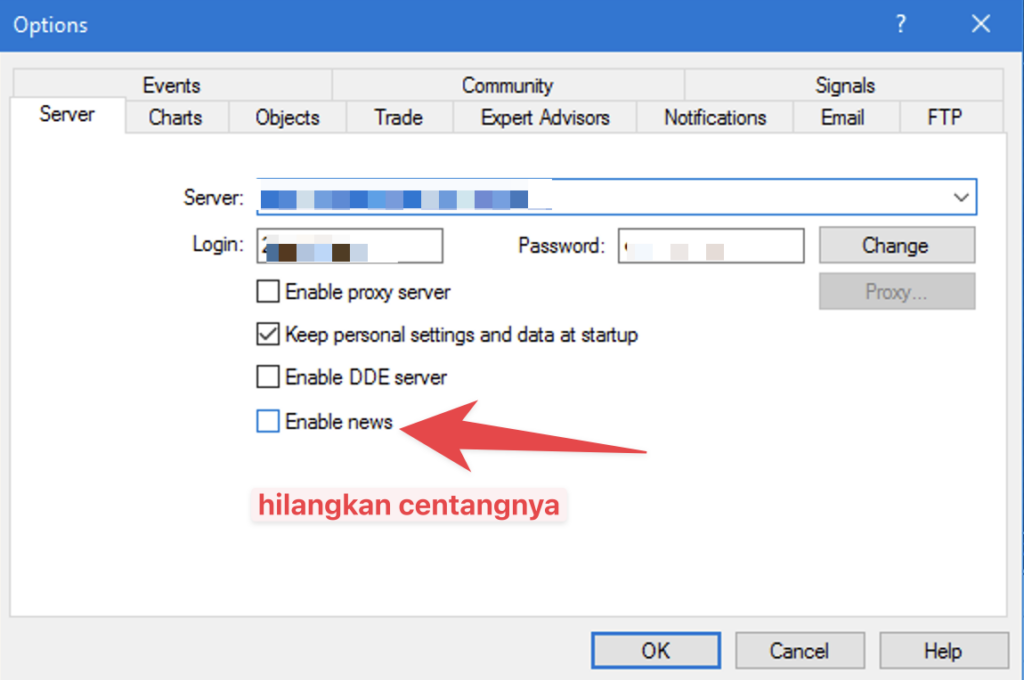
1. Disable News in MetaTrader
The news feature in MetaTrader consumes memory and can fill up your VPS storage over time. To disable it:
- Open MetaTrader
- Click Tools → Options
- Select the Server tab
- Uncheck Enable News
- Click OK
2. Remove Unused Chart Objects
EAs often leave unused objects on charts that slow down performance. To clean them:
- Right-click on an empty area in the MetaTrader chart
- Select Objects List
- Click Select All
- Click Delete
3. Delete Strategy Tester Market History
Strategy Tester accumulates historical data that can fill up VPS storage. To clean it:
- Close all Strategy Tester windows and ensure no tests are running
- In MetaTrader, click File → Open Data Folder
- Open the history folder
- Navigate to your broker server's sub-folder
- Delete the history files or folders you no longer need (typically named after market symbols and timeframes used in the Strategy Tester)
4. Clear Browser Cache
If you use a web browser on your VPS, clear the cache periodically. Accumulated cache can slow down the entire VPS. The clearing process varies by browser but is typically found in Settings or Privacy options.
5. Restart the VPS
If the VPS still feels slow after the steps above, perform a restart. Restarting refreshes the system and frees up memory that has been used inefficiently.