
Step-by-step guide to remotely accessing your Windows VPS from Android or iPhone using the Microsoft Remote Desktop app, including screenshots for each step.
To log in and control your VPS from an Android or iPhone, you need a Remote Desktop app that lets you access a computer over the internet. Many free options are available on the Google Play Store (Android) or App Store (iPhone).
This tutorial uses the Microsoft Remote Desktop app as an example.
Choosing Your Remote Desktop App
Remote Desktop 8 (Recommended for Android)
We recommend Remote Desktop version 8 for its stability across all VPS operating systems, including Windows 7 and Windows 10. You can download it from APKPure.
Latest Remote Desktop Version
The latest version is available directly on the Google Play Store or Apple App Store. iPhone users have no option to download version 8, so use this version instead. It is generally stable for Windows 10 and above, and works fine on Windows 7 as well.
Connection Steps
-
Download and install the Microsoft Remote Desktop app on your phone.
-
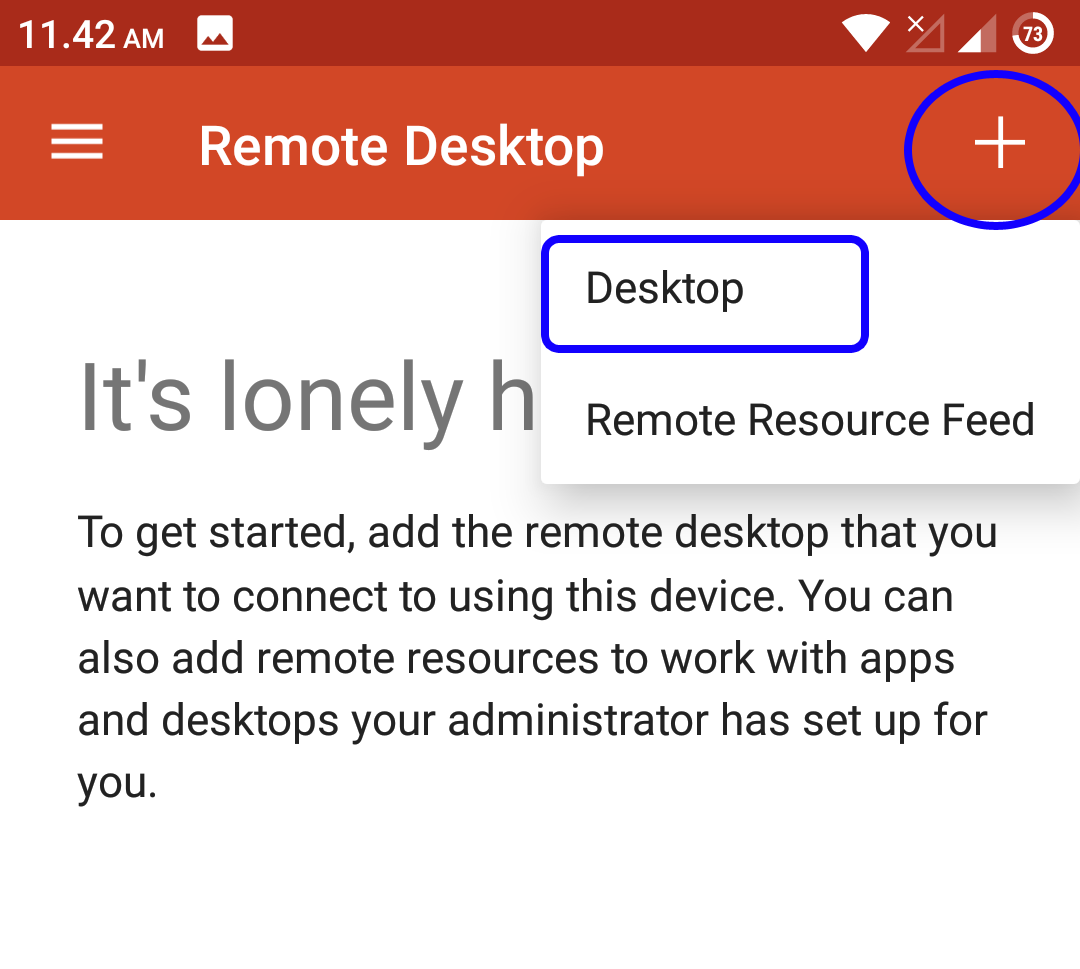
Open the app, tap the (+) icon in the top-right corner, then select Desktop.
-
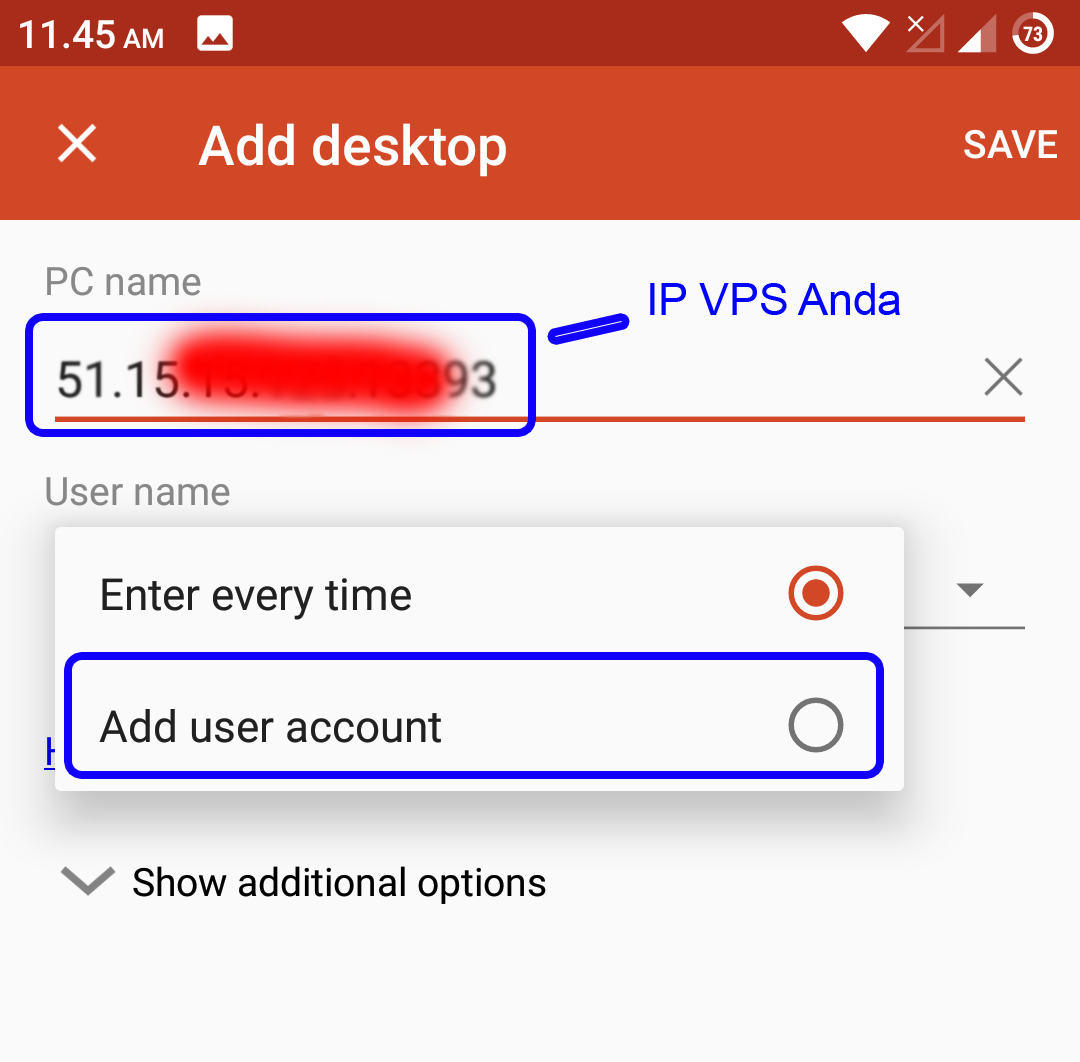
Enter your VPS IP address in the PC name field.
-
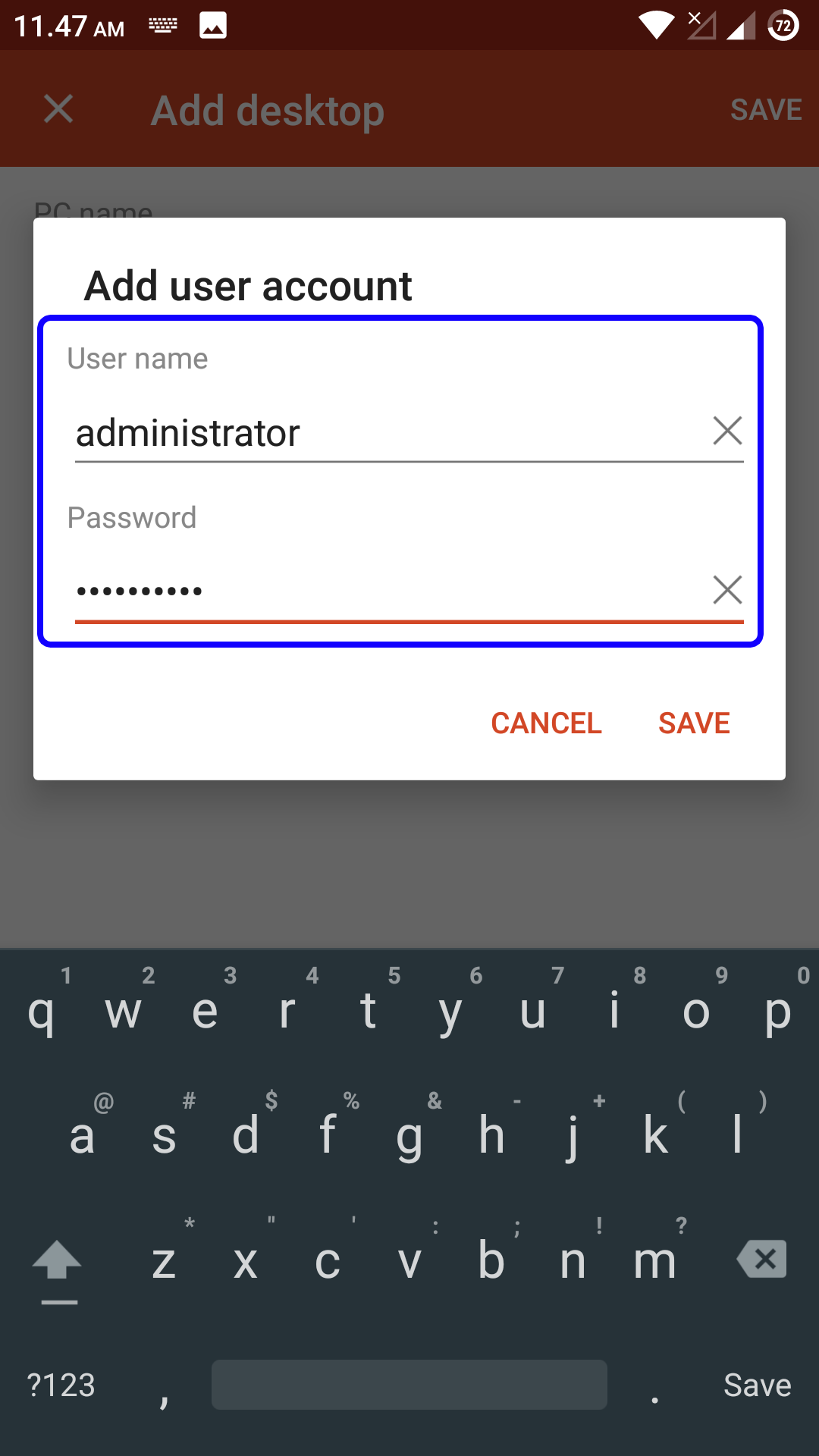
Switch to User name, select Add user account, then enter your VPS Username and Password. Tap SAVE (top-right corner).
-
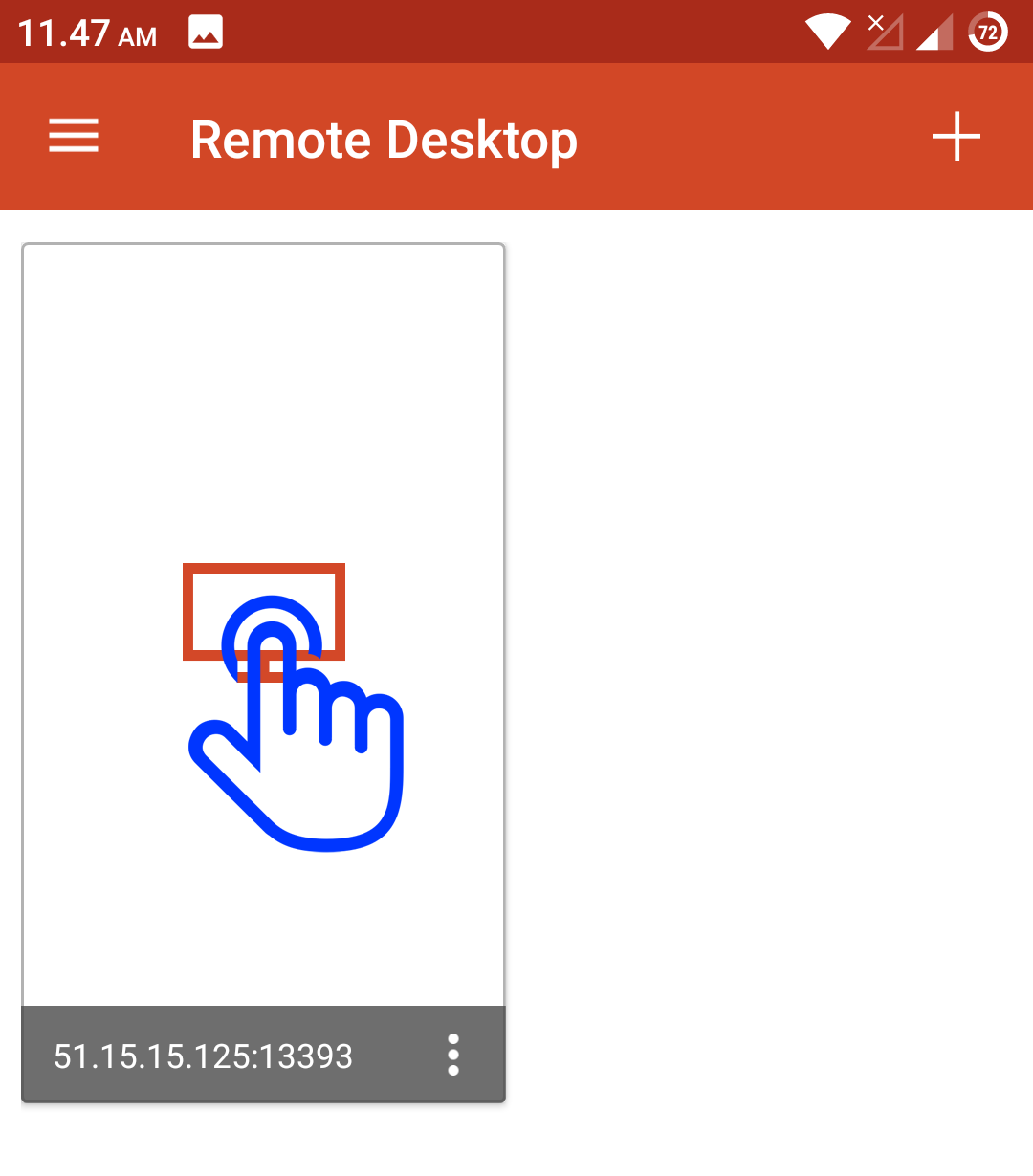
Tap the VPS you just added to initiate the connection.
-
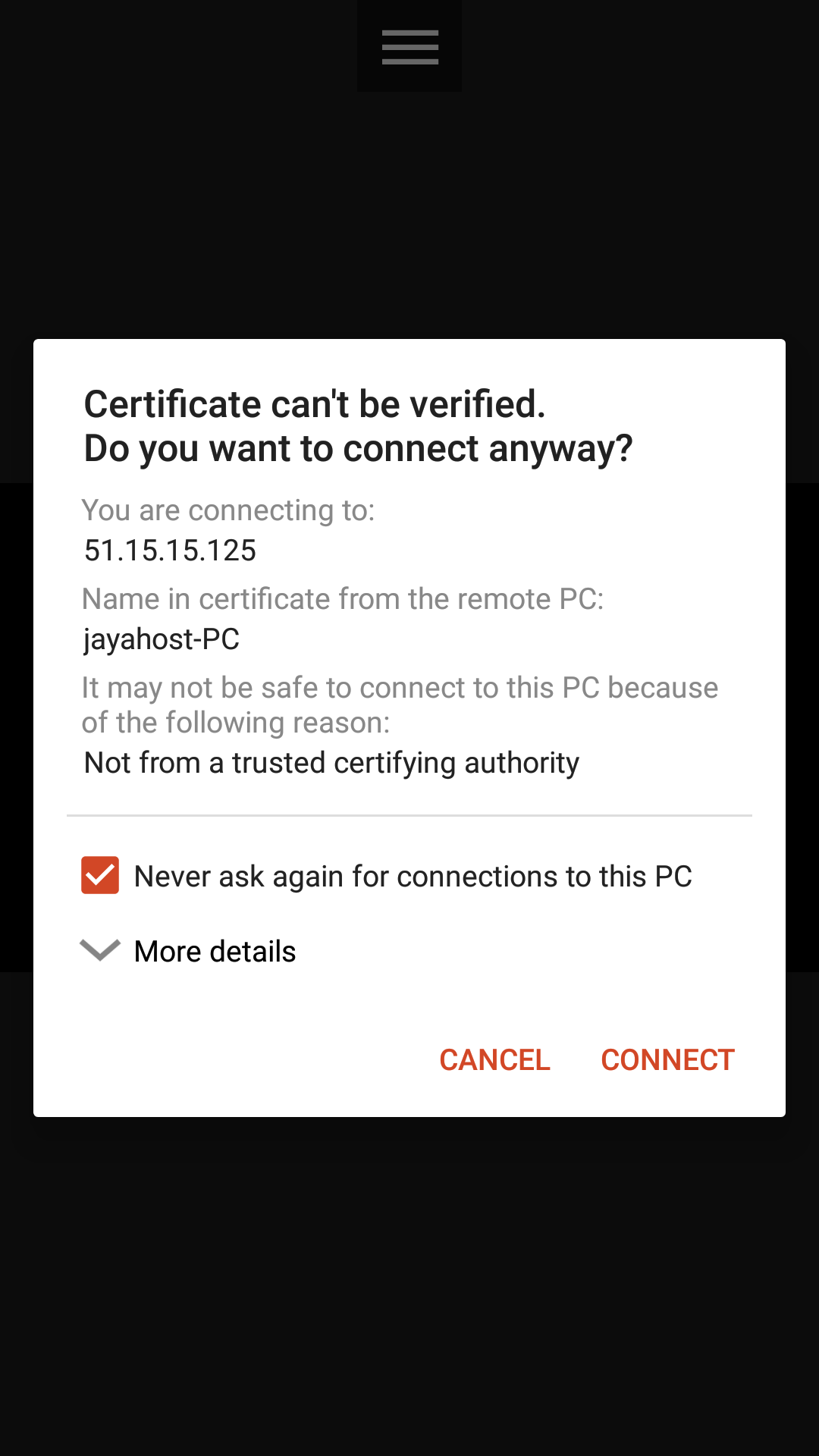
Check "Never ask again for connection to this PC", then tap CONNECT.
-
Tap the center of the VPS icon and wait for the connection to establish.
-
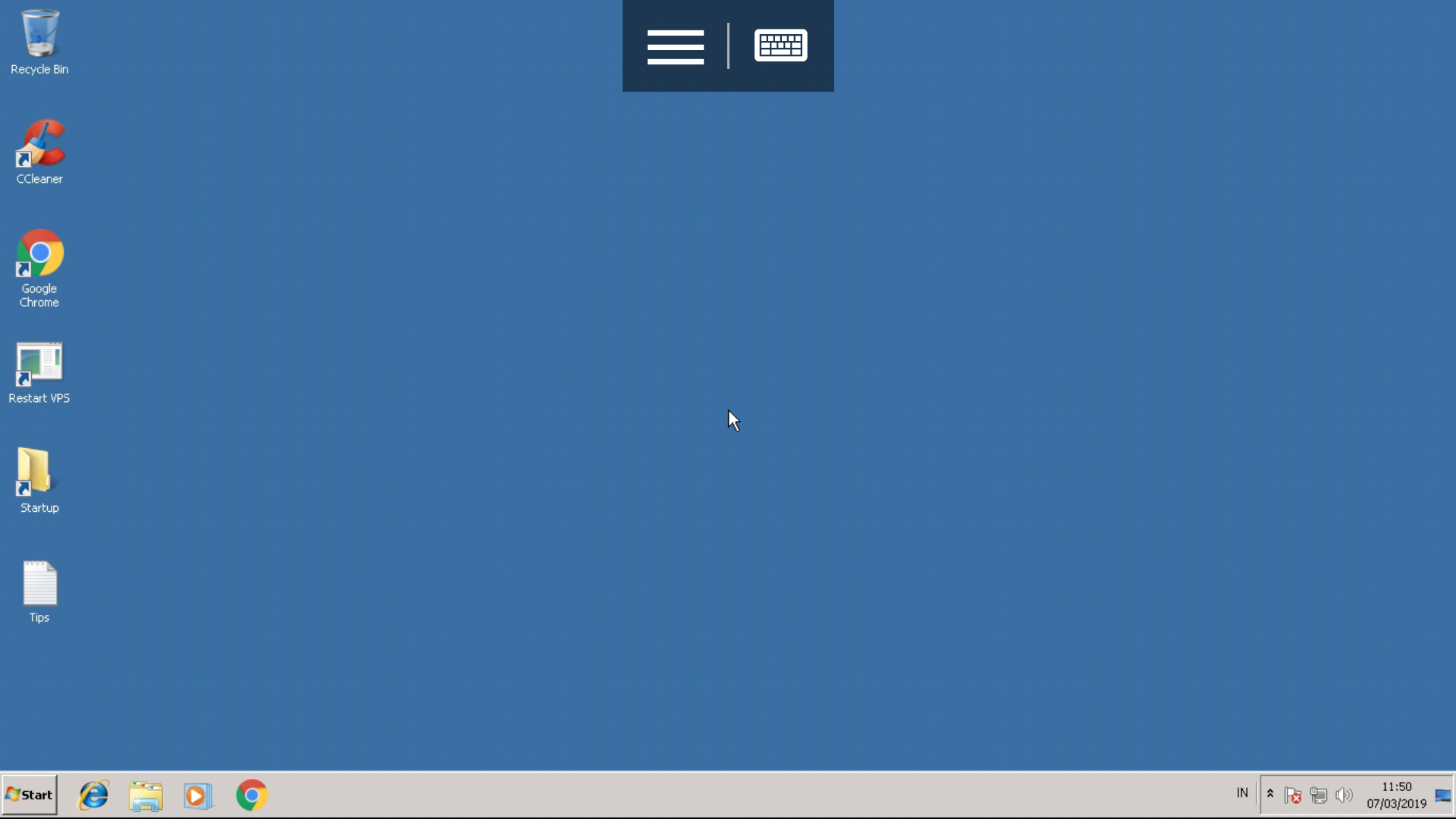
You are now connected to your VPS.
How to Disconnect Without Shutting Down the VPS
To exit without closing running applications on your VPS:
- Option 1: Press the Back button on your phone twice.
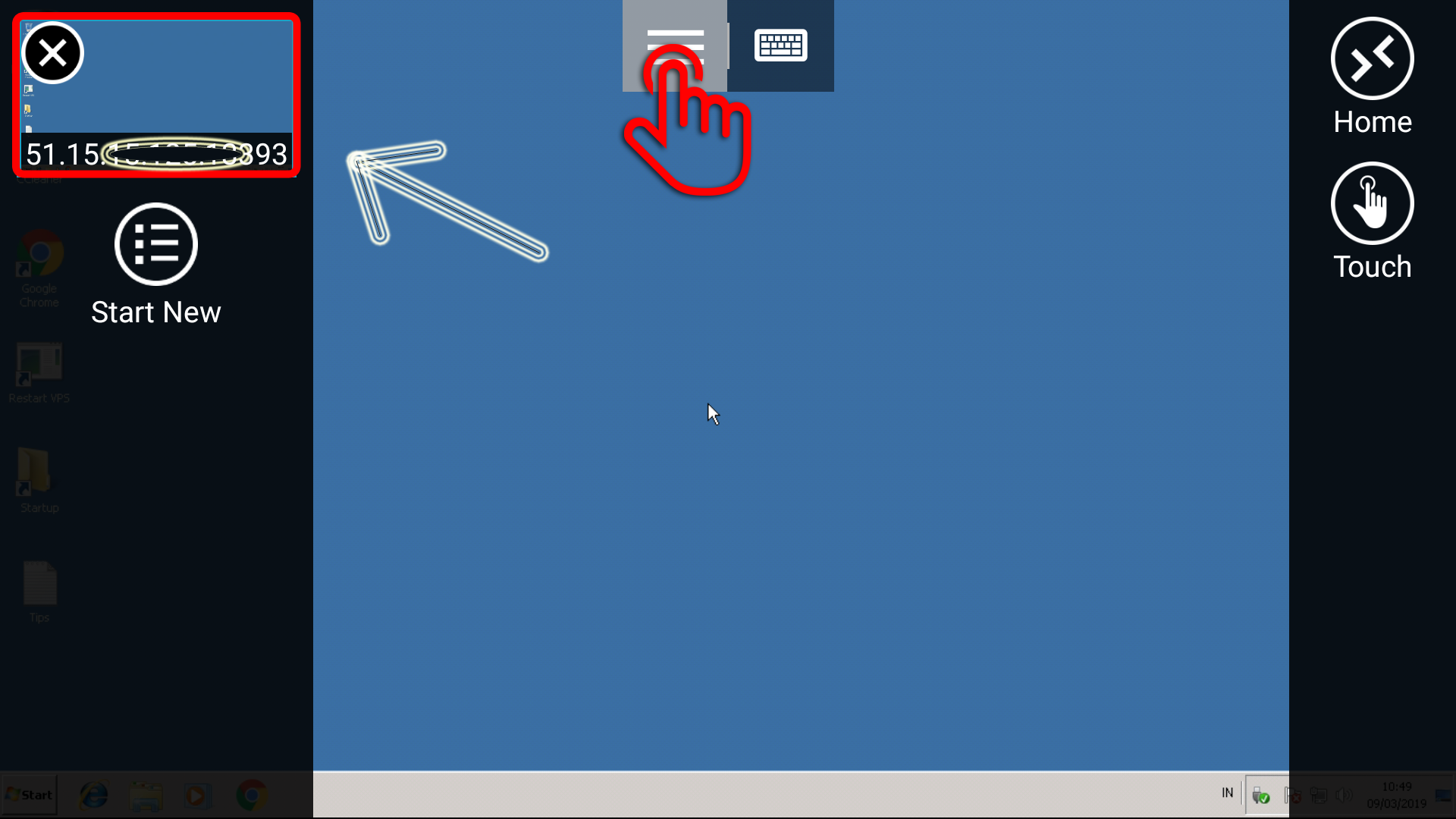
- Option 2: Tap the (≡) icon, then tap the (X) button next to it.
Tip: If the VPS appears in portrait mode and you want landscape, go to Display in the Remote Desktop app → Orientation → select Lock to landscape.