
Guide to transferring files (EA, indicators, etc.) between an Android device and a Windows VPS using the Redirect Local Storage feature in Microsoft Remote Desktop.
Sometimes you need to transfer files such as EAs, indicators, or other files from your Android phone to your VPS (or vice versa). Unlike on a PC where you can simply copy and paste, the process on Android is slightly different — but still straightforward.
Steps
Step 1 — Open the Remote Desktop App
Open the Microsoft Remote Desktop app on your Android device.
Step 2 — Edit the Connection Settings
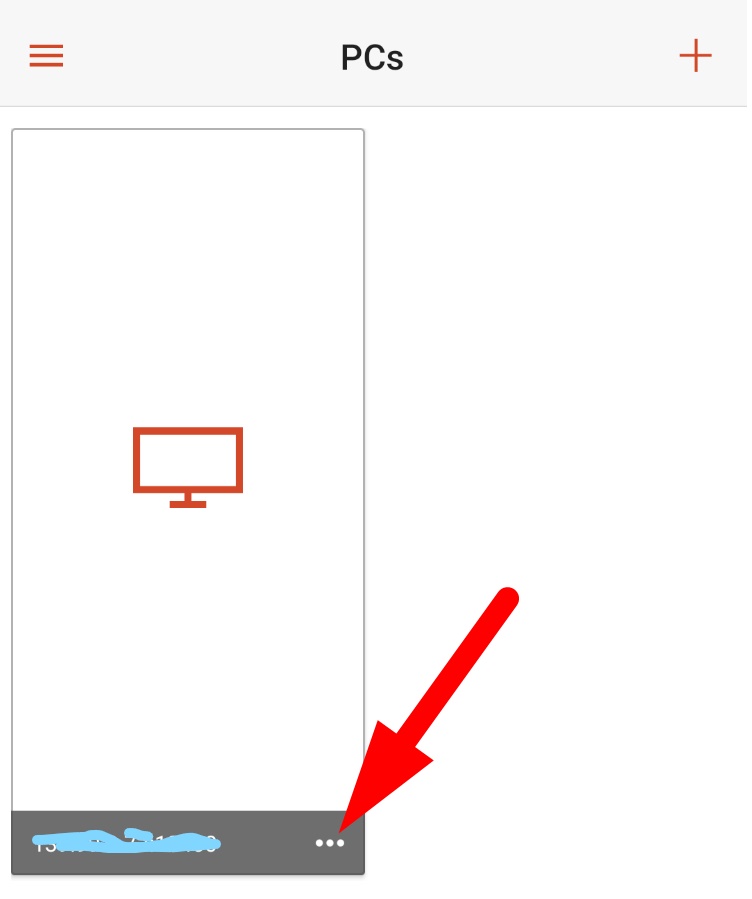
Tap the (…) icon on your VPS connection and select Edit.
Step 3 — Enable Redirect Local Storage
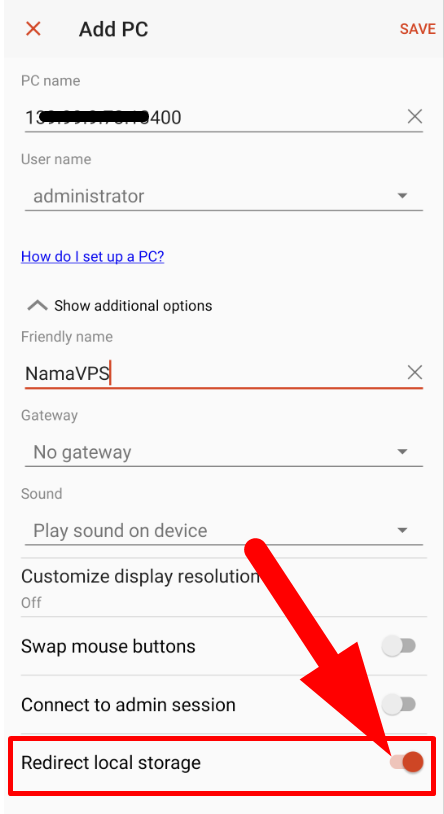
Tap Show additional options, scroll down, and enable Redirect local storage. Tap Save.
Step 4 — Connect to the VPS
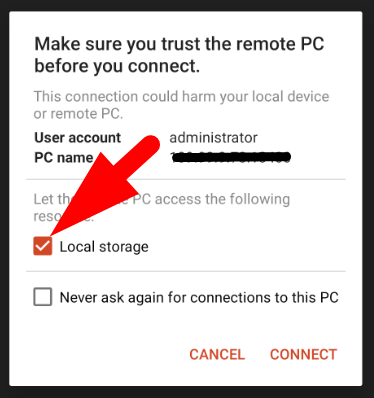
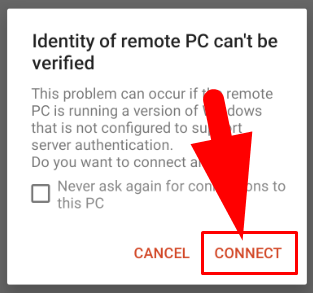
Go back to the main screen and tap your VPS connection. When the dialog appears, check Local Storage and tap Connect.
Step 5 — Open Windows Explorer on the VPS
Once connected, open Windows Explorer on the VPS. Your Android phone's storage will appear as a separate drive.
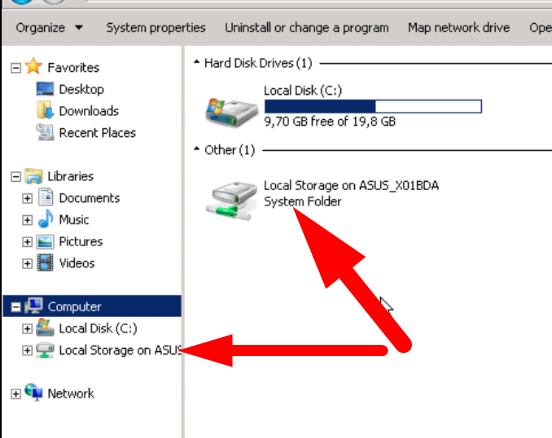
Step 6 — Copy and Paste Files
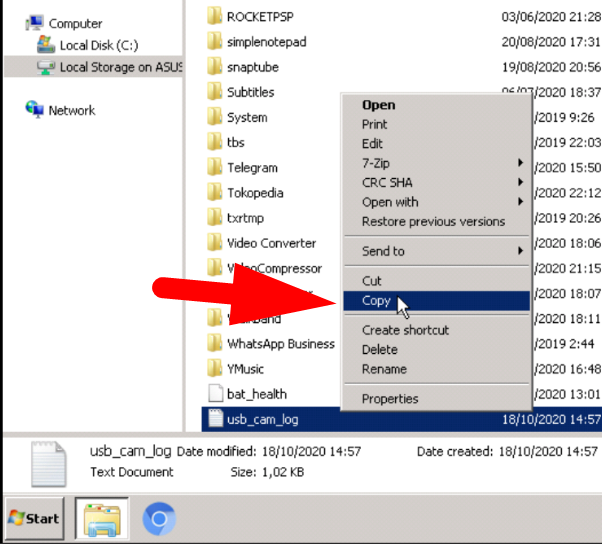
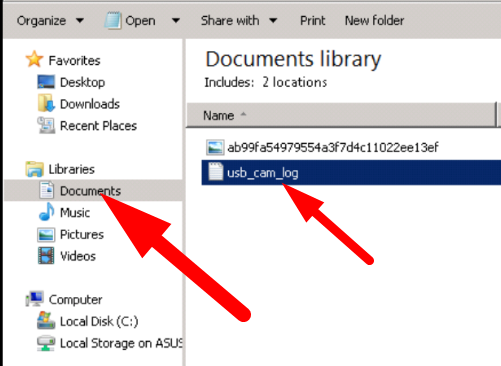
Copy the file from your Android storage and paste it to the desired location on the VPS (or the other way around).
Tip: When you're done transferring files, disable Redirect local storage again to reduce the load on your VPS connection. Re-enable it only when needed.