
How to Transfer Files to Your VPS on iPhone/iPad (iOS/iPadOS)
Guide to transferring files between iPhone/iPad and a Windows VPS using the Storage feature in Microsoft Remote Desktop and the iOS Files app.
Sometimes you need to move files such as EAs or other documents to your VPS from an iPhone or iPad (or the other way around). Here's how.
Steps
Step 1 — Open the Remote Desktop App
Open the Microsoft Remote Desktop app on your iPhone or iPad.
Step 2 — Edit the Connection Settings
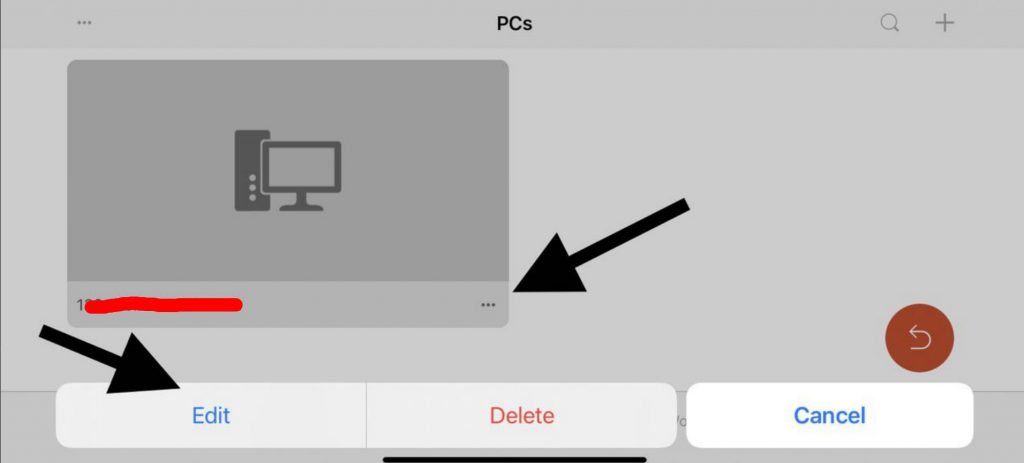
Tap the … icon on your VPS connection and select Edit.
Step 3 — Enable Storage
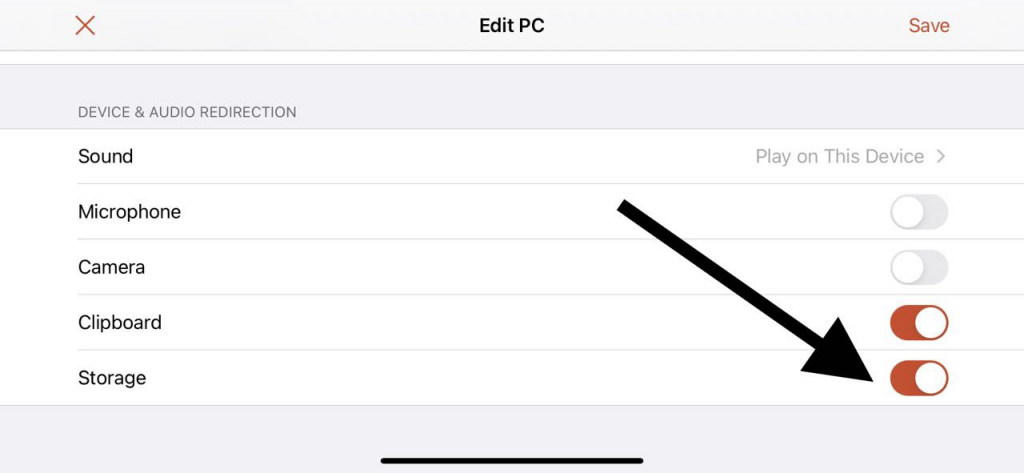
Scroll down in the connection settings and enable the Storage option. Save the settings.
Step 4 — Move Files to the RD Client Folder in the Files App
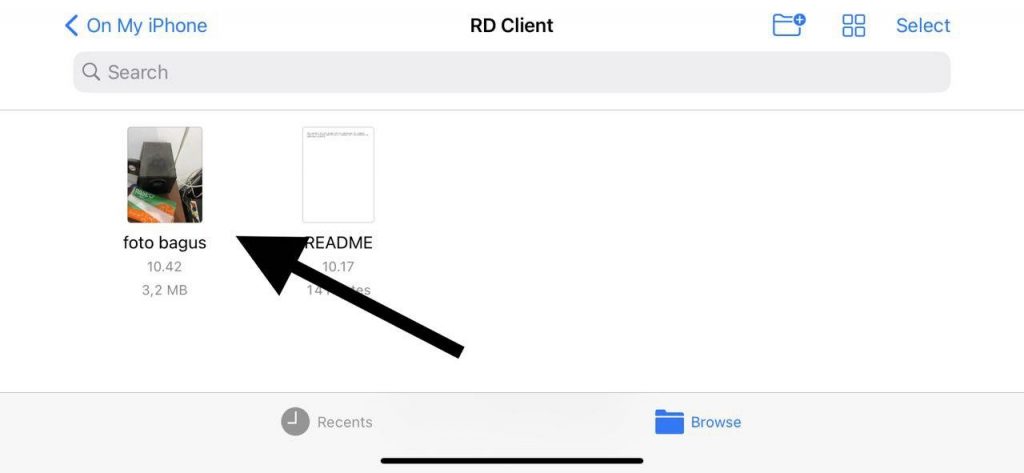
Open the Files app on iOS. Go to iPhone Storage and find the RD Client folder. Move the file you want to transfer to the VPS into this folder.
Step 5 — Access the File on the VPS
Connect to the VPS via Remote Desktop and open Windows Explorer. Your iPhone/iPad files will appear in a folder named Documents on (device name).
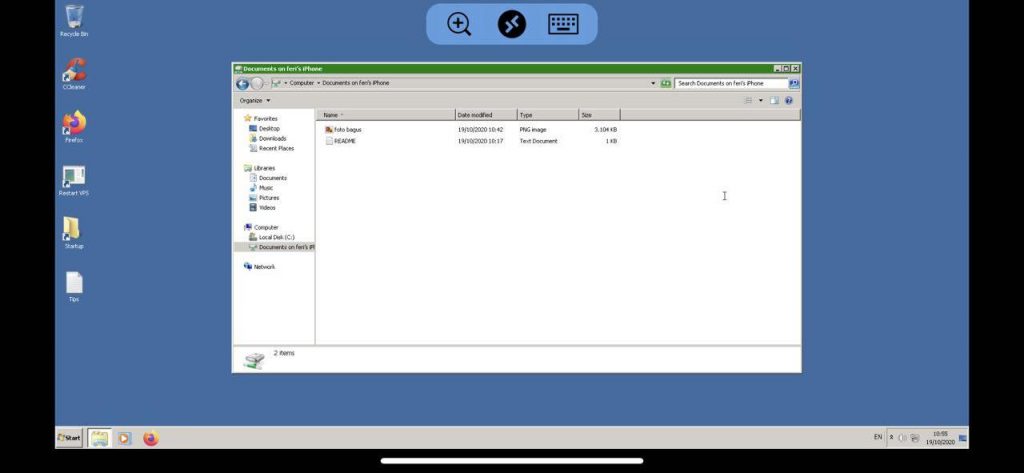
Copy and paste the file to the desired location on the VPS.
Transfer from VPS to iPhone/iPad: Copy the file on the VPS and paste it into the device drive shown in Explorer. The file will automatically appear in the RD Client folder in the iOS Files app.