
Installing Multiple MetaTrader Instances on digiOS Forex VPS
A guide to installing more than one MetaTrader instance for the same broker on a digiOS Forex VPS, including how to add each instance to Auto Start.
There are two types of multi-MetaTrader installation:
- Different Brokers (e.g. FBS, Octafx, XM) — the process is exactly the same as a standard MetaTrader installation
- Same Broker (e.g. FBS, FBS 2, FBS 3) — requires additional steps explained in this tutorial
Instalasi Cara Baru
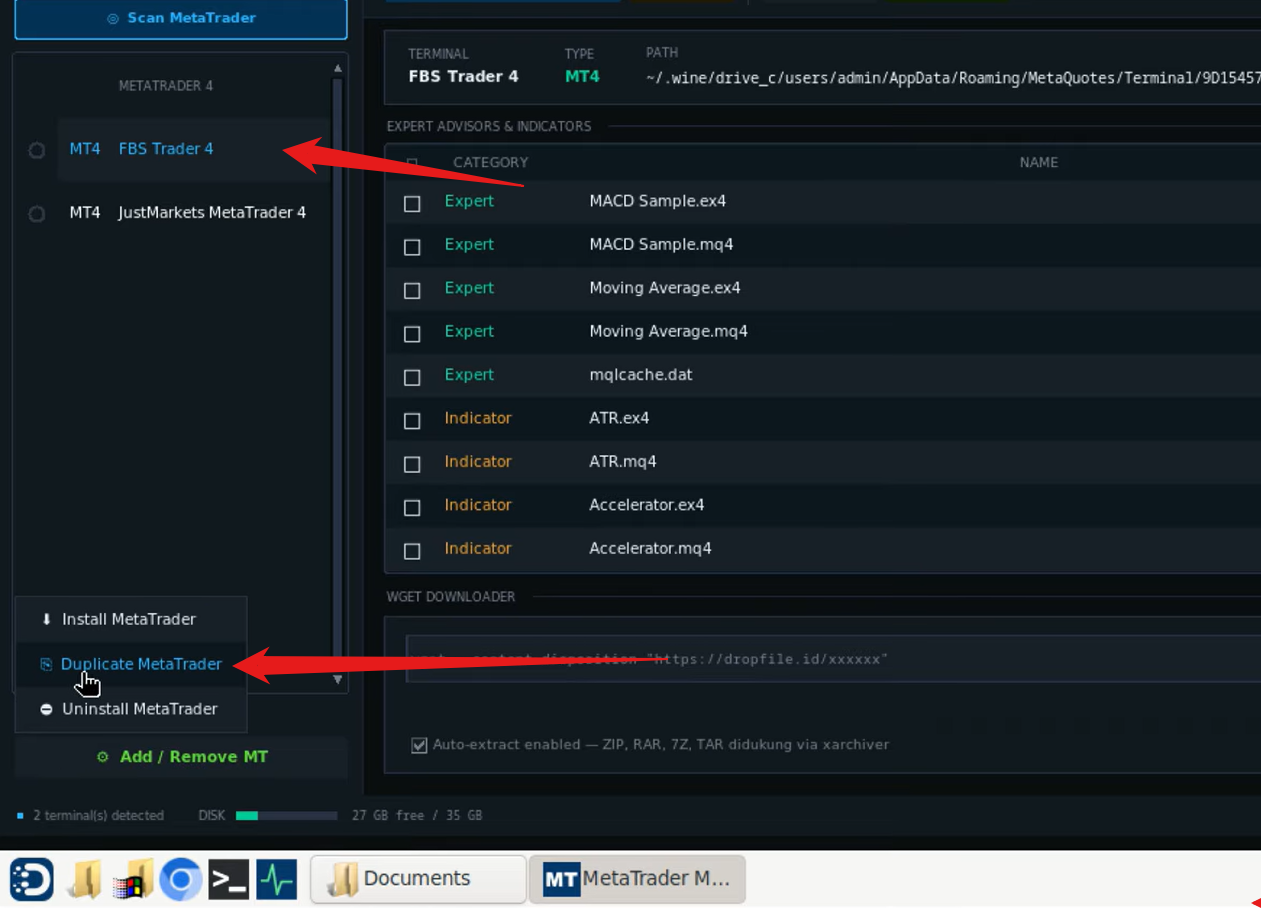
you can use MT Manager for simple instalation method. you can use the Duplicate feature in MT Manager. Steps:
- Open MT Manager on Desktop
- Click on the MetaTrader instance you want to duplicate
- Select Add / Remove MT
- Click Duplicate
A new MetaTrader instance will be created as a copy of the original, complete with the same broker configuration. Meta Trader baru akan dibuat sebagai salinan dari yang sudah ada, lengkap dengan pengaturan broker yang sama.
Manual Install (if stil needed)
Download MetaTrader
Download MetaTrader from vfxwelcome or directly from your Broker's website.
Installing the First MetaTrader
Install the first MetaTrader as normal — the same process as a standard MetaTrader installation.
Installing the Second MetaTrader and Beyond (Same Broker)
For each additional MetaTrader instance using the same broker, each instance requires its own separate folder and Start Menu shortcut.
Add a new folder and Start Menu entry for each additional MetaTrader you install.
Once done, the new MetaTrader will appear in the Start Menu.