
How to protect your Windows VPS from brute force attacks by using a strong password and setting an account lockout policy via Local Security Policy.
A brute force attack is an attempt to break into a VPS by repeatedly trying password combinations using automated tools. These attacks can come from malicious individuals or automated IP scanners spreading malware such as ransomware.
The main vulnerability: a weak password is the biggest opening attackers exploit.
1. Use a Strong Password
Make sure your VPS Remote Desktop password is strong and not easily guessed. Avoid combinations like 123456, 111111, or obvious names.
A strong password includes:
- Uppercase and lowercase letters
- Numbers
- Special characters (optional)
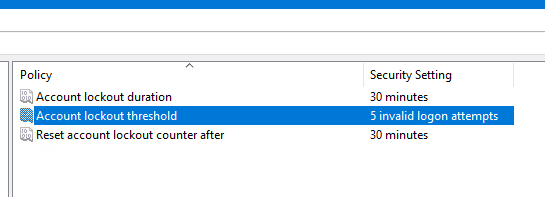
2. Limit Login Attempts (Account Lockout)
By limiting login attempts, the account will be temporarily locked after a set number of failures — stopping brute force tools in their tracks.
On Windows 10
- Right-click Start → Run → type
secpol.msc→ Enter
On Windows 7 / Server 2012
- Click Start → type
secpol.msc→ Enter
Next Steps (all Windows versions)
-
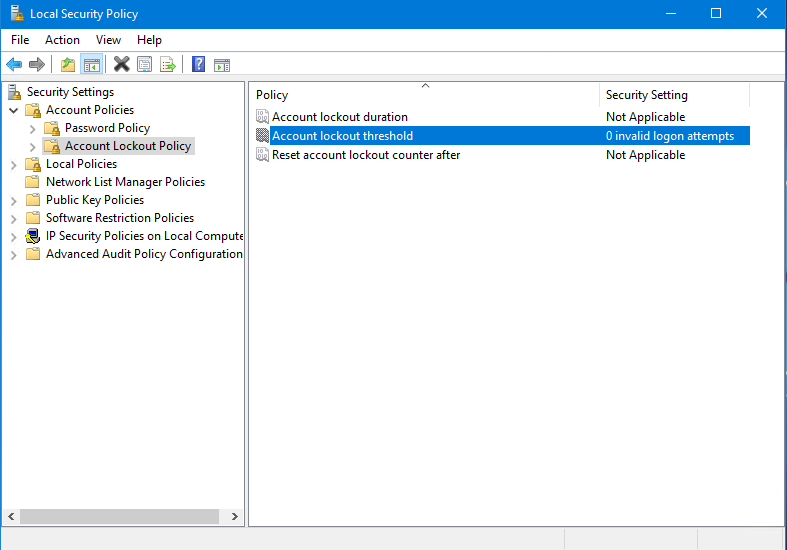
Navigate to: Security Settings → Account Policies → Account Lockout Policy
-
Double-click Account Lockout Threshold
-
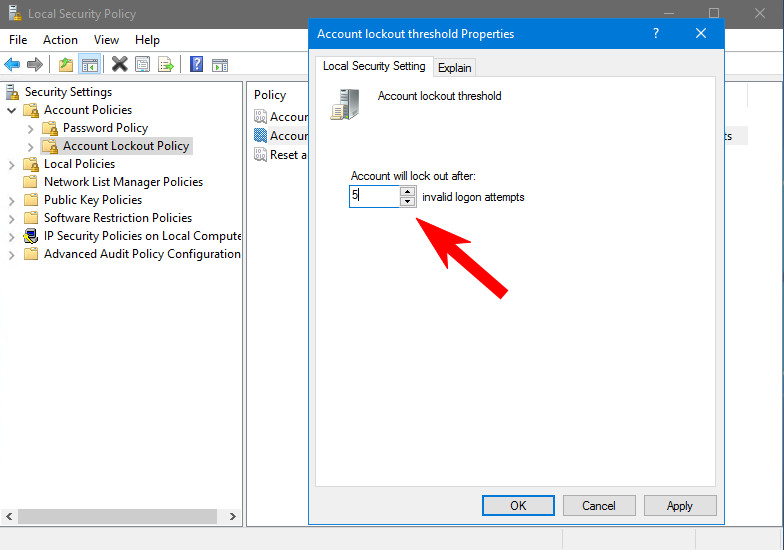
Enter the recommended failure limit: 5
-
The system will suggest automatic settings for lockout duration (30 minutes) and counter reset — click OK to accept
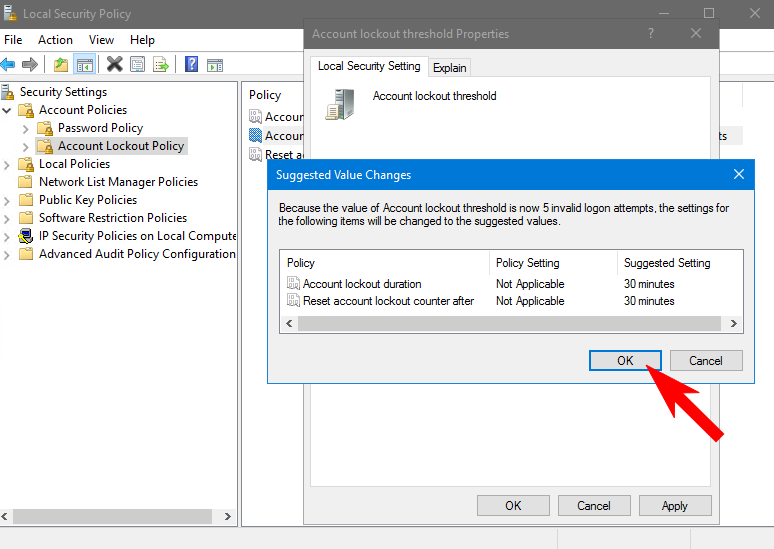
With this setting, after 5 consecutive failed login attempts, the account will automatically lock for 30 minutes.
3. Install an Antivirus
As an additional layer of protection, install a lightweight antivirus such as AVG Free to protect your VPS from malware threats.