To install Multi Meta Trader there are 2 types
- Install for Different Brokers (eg FBS, Octafx, XM)
- Install for the same Broker (FBS, FBS 2, FBS 3)
To install with a different broker, the method is exactly the same as installing MetaTrader. However, if you need to install with the same broker, this tutorial will explain it.
Download Meta Trader
Download Meta Trader, you can do it from vfxwelcome, or you can also do it from your broker.
Perform the first installation of Meta Trader
For the installation of Meta Trader 1, it is the same as the installation of Meta Trader in general.
Meta Trader 2 installation and so on
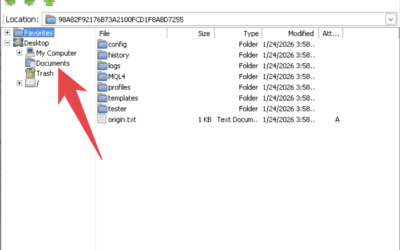
To install, simply add each folder and start menu. Check out this tutorial.
then you can see Meta Trader in the Start Menu
Enter Auto Start
This is very different from the previous one, because Multi Meta Trader has the same shortcuts. Therefore:
- The shortcuts on the desktop are no longer valid, you can just delete them so you don't get confused.
- use the shortcut in the “Windows Program” folder”
- copy and paste into Auto Start
Bonus Rename all Meta Traders so you don't get confused
Here is a tutorial for installing multi meta trader and putting it into autostart.