1. Prepare VPS Login Data
Before you start, make sure you have:
- VPS IP Address and Port
- Passwords
2. Install RealVNC Viewer
If you don't have the app yet, download and install it from:
Download for PC (Windows / Mac / Linux)
Make sure you download the Viewer, not the Server.
3. Open RealVNC Viewer
Once installed, open the app. You can continue without an account, or sign in with a RealVNC account.
On the home page, you will see an empty box to enter the server address.
4. Enter the VPS Address
In the address box, type the IP address of the VPS you received. Example:
123.123.123.123:5557
Then press Enter or click to open the connection.
5. Accept Security Warnings (If Appeared)
The first time you log in, the message usually appears:
“Unencrypted connection” or “Do you trust this connection?”
Just click Continue / proceed.
6. Enter Password
A login window will appear.
Insert:
- VPS Password
Click OK / Login.
7. Done – You Login to the VPS Desktop
You should now see the Linux desktop view used as a remote desktop.
From here you can run trading applications or other tools as needed.
Additional so that the image remains good
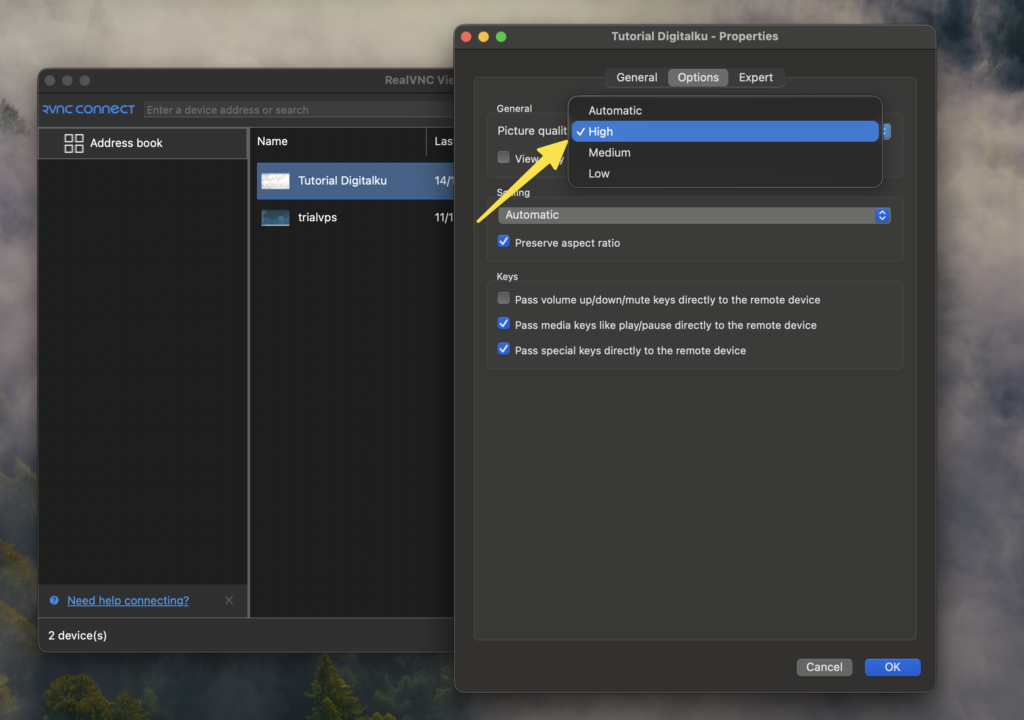
Right-click VPS = Properties => Options. Change Picture Quality from Automatic to High.