
Step-by-step guide to connecting to your Windows VPS using Remote Desktop Connection — from opening the app to successfully accessing your VPS desktop.
Remote Desktop lets you control your Windows VPS from anywhere, just like using a regular PC. Follow these steps to connect.
Step 1: Open Remote Desktop Connection
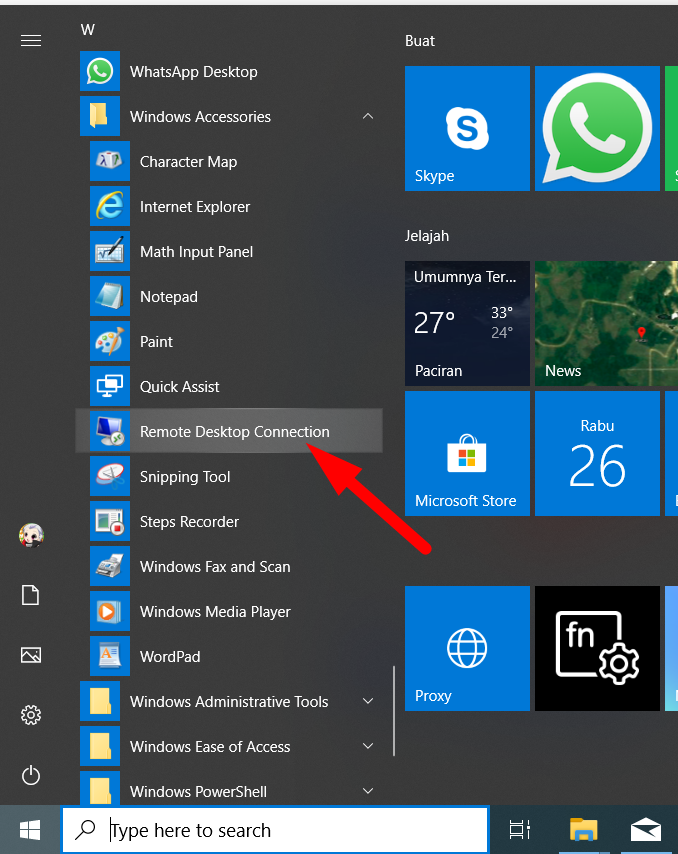
Click Start → Windows Accessories → Remote Desktop Connection.
Step 2: Enter Connection Details
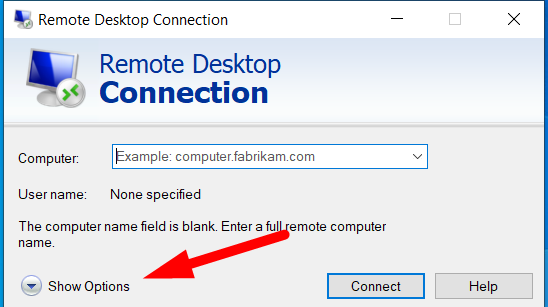
Click Show Options, then fill in:
- IP Address of your VPS
- Username (typically
Administrator)
You'll find these details in the VPS confirmation email from Digitalku.
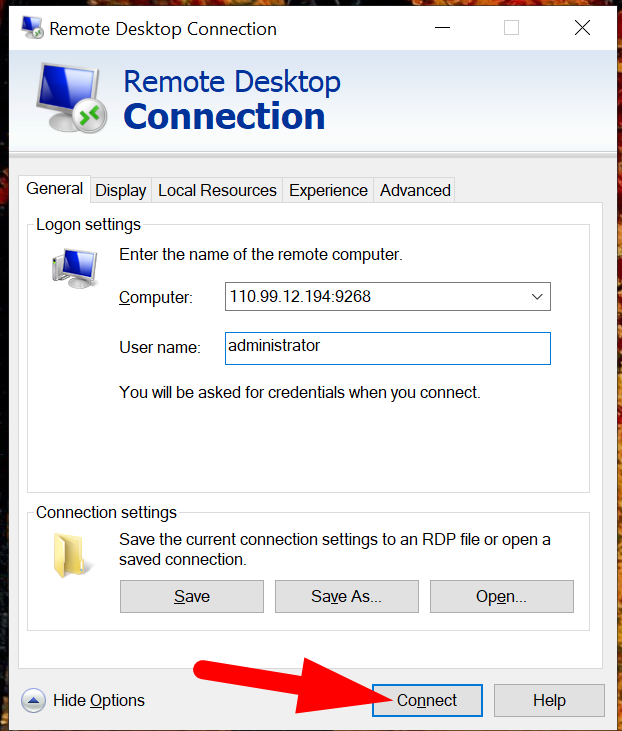
Tip: If you see Allow me to save credentials, check that box to avoid entering your password every time. If it says Always Ask credentials, leave it unchecked.
Click Connect.
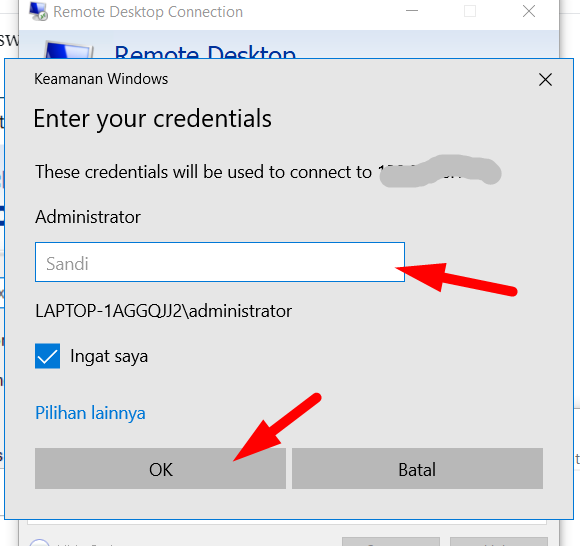
Step 3: Enter Your Password
Type your VPS password and click OK.
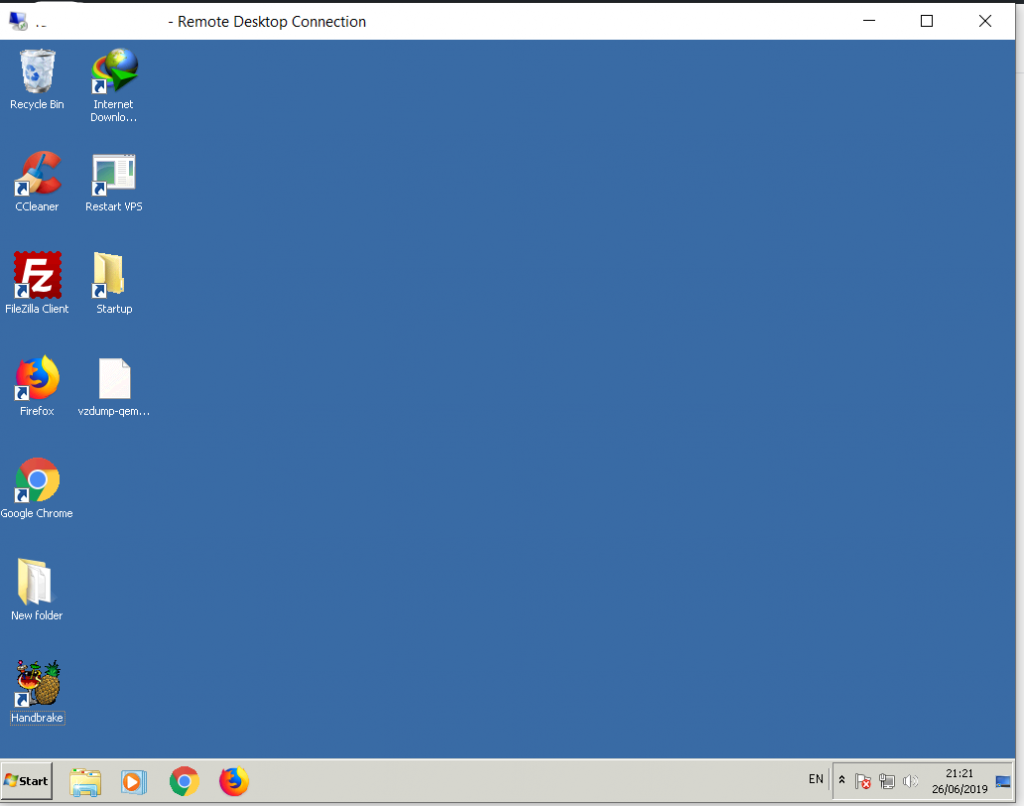
Step 4: You're In
Once authenticated, your Windows VPS desktop will appear and is ready to use.
Password Too Complicated?
If the default password is hard to remember, you can change it to something simpler. See the guide on How to Change Your Windows VPS Password for steps.
If you have trouble connecting, contact Digitalku support for help.