Windows Defender is a built-in Windows antivirus that can protect the system from malware threats. However, on a VPS used exclusively for forex trading with MetaTrader, this antivirus is often unnecessary. Disabling Windows Defender can improve VPS performance, especially on low-spec VPSs frequently used for trading.
This tutorial applies to the LTSC or Full version of Windows. For the Lite version, this tutorial is not necessary because we have disabled this feature from the start.
Here are the steps to permanently disable Windows Defender using Group Policy Editor:
1. Open Group Policy Editor
- Log in to your VPS Remote Desktop. Follow this tutorial inside your VPS.
- Click Start or go to Run
- Type
gpedit. mscand press Enter.
2. Navigate to Antivirus Policy
- In the left panel, navigate to:
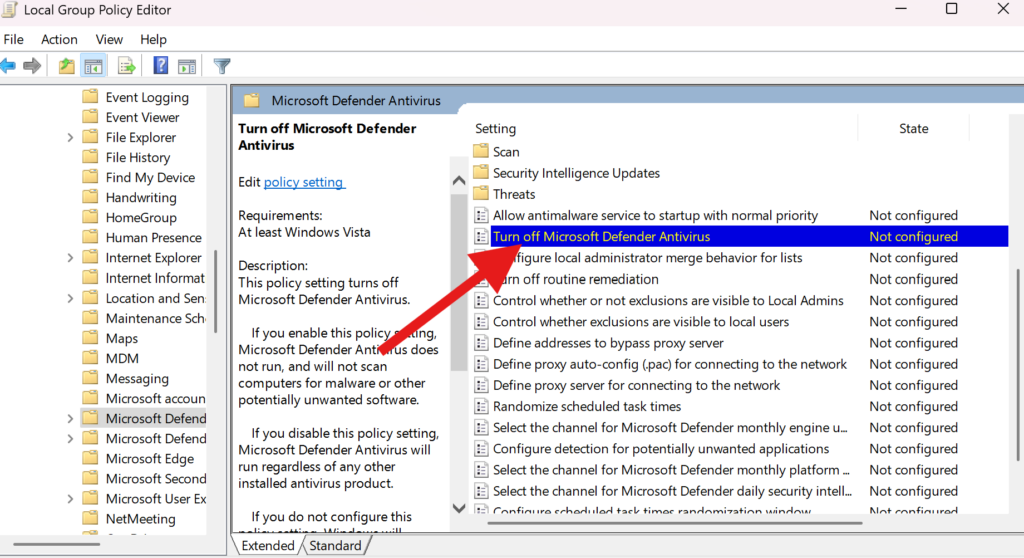
Computer Configuration > Administrative Templates > Windows Components > Microsoft Defender Antivirus
3. Turn off Microsoft Defender Antivirus
- In the right panel, look for policies Turn off Microsoft Defender Antivirus.
- Double-click the policy to open it.
- Select an option enabled to disable Defender.
- Click apply, then click OK.
screenshot of gpedit Settings location to disable Windows Defender
4. Restart the computer
- After changing the policy, restart your computer to apply the changes.
Benefits of Disabling Windows Defender on a Forex VPS
- Faster Performance: Reduces CPU and RAM resource usage, so MetaTrader can run more smoothly.
- Optimal for Low Spec VPS: Very useful for VPS with limited specifications which are often used for forex trading.
Vital Records: Ensure your VPS is only used for secure trading activities, such as running MetaTrader, and avoid downloading files from unknown sources. If you need additional protection, consider a lightweight alternative security solution.
By following the steps above, you can ensure your VPS is faster and optimal for your forex trading needs.